Fortinet – Creating vlans for devices directly connected to device

The other day I had the need to plug a Ruckus Access point directly into the Fortigate firewall. The client only needed 1 AP, and connecting directly into one of the ports on the Fortigate was the best way – PoE was provided by an injector.

The question came up of how to create the Vlan interface when directly connecting the device to Fortigate.

In this example I will create the vlan on the Internal switch “lan”, and control the vlan from the Ruckus Zonedirector. This will create two separate logical interfaces. Internal, and Staff-Wireless, my newly created vlan.  These two interfaces will require IPV4 policies to allow communication. If you have a lot of VLANs it might be a great idea to utilize Zones in the FW to reduce the number of firewall policies needed.

Lets get started

Vlan creation of Fortigate

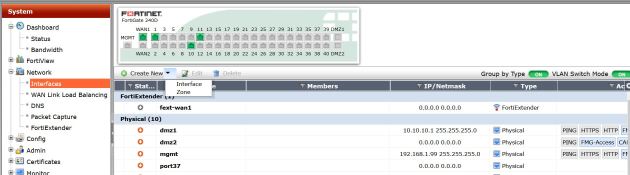
So, lets create the vlan for “Staff-Wifi” Vlan 200. You can just create

create-interface

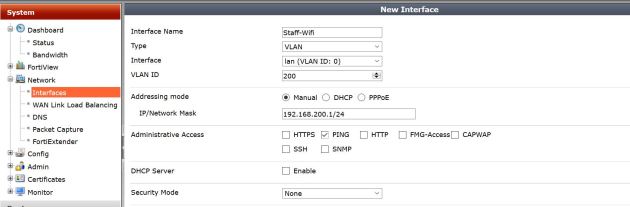
Now lets put in the needed info.

Interface

The below shows the status of the interface:

show-int

Notice the VLAN ID – this is seen by right clicking the column settings and enabling that.

Thats it! The Ruckus AP will tag “Staff-Wireless” traffic as vlan 200. So, when the FGT sees the vlan tag of 200 on any ports in the lan switch, it will be treated as Staff-Wifi, thus getting all of its network and policies.

To make the AP work correctly, it needs to be plugged directly into the FGT or a switch behind the FGT that has the vlan created and that vlan would need to be tagged on both the AP and uplink to Fortigate.

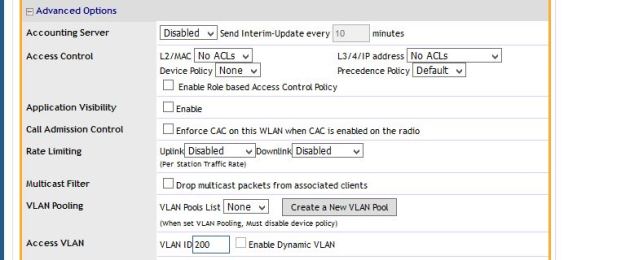
Below shows the advanced options of my Ruckus  ZD. I am tagging the Staff-Wifi SSID as vlan 200.

Ruckus.JPG

Remember on the Ruckus side only vlan 200 is being tagged for Staff-wifi AP management traffic is untagged – so it would be on my “LAN” switch network.


Cisco ASA 8.4+ manual nat – the only way to nat!

Before learning the more about Manual or “Twice Nat” I would use individual object NAT (Auto NAT) for my incoming services, and use Manual NAT for my No-NAT or if I had to NAT VPN traffic before encryption (Policy NAT).

Recently though I started using it for everything. Once you get the hang of it, it is much more applicable to everyday NAT needs.

Something to note about Manual NAT:

  • Processed before Auto NAT (Nat under the object command)
  • Considers source, or source and destination together (Policy)
    • For example – I need to  NAT traffic to this IP, only when it goes to this network
  • Configured directly from global config
  • Uses objects only, cannot specify direct IPs
  • Can specify to come after auto NAT.

Lets get started with a few examples. A list of all examples is below:

Static NAT – Public address/server to Private address/service

Group/Range of services forwarded into private server

Port redirection

Dynamic NAT

Policy Based Nat

Something to always note – 8.3 and above firmware’s require you to put in the private or real ip address of destination , not the public or Natted address.

Static NAT – Public address/server to Private address/service

Lets say my internal web servers  is at 10.20.20.10. The external IP I am using is 23.4.3.10. I want to NAT in only HTTP (80) traffic to my server. No problem.

Lets create the our address Objects

object service OBJ-TCP-80
 service tcp source eq 80

object network OBJ-10.20.20.10
 host 10.20.20.10
object network OBJ-23.4.3.10
 host 23.4.3.10

Great! Now lets create our Manual nat rule to allow that traffic in.

nat (inside,outside) source static OBJ-10.20.20.10 23.4.3.10 service OBJ-TCP-80 OBJ-TCP-80

Thats it, we would create our ACL to allow traffic to the Private host (Remember that, big time change in 8.3) and that’s it. Our traffic would be natted from Public, to Private port 80.

The next example will be a 1 to 1 NAT from our private object created above, to our public object also created above.

NAT (inside,outside) source static OBJ-10.20.20.10 OBJ-23.4.3.10

Modify the ACL to allow traffic to 10.20.20.10 and traffic should make it to the host.


Forward in a group or range of services

In this example we will forward in a group of service objects. Lets say HTTP, HTTPS, and SSH . Still using our local/public hosts. You have two options, 1 create a service group full of existing objects, or create a group of Service-objects. Int the below example I will create a group of predefined objects. This is due to having so many different configurations of groups.

object service OBJ-TCP-80
 service tcp source eq 80

object service OBJ-TCP-443
 service tcp source eq 443

object service OBJ-TCP-22
 service tcp source eq 22

object-group service Web-services
group-object OBJ-TCP-80
group-object OBJ-TCP-443
group-object OBJ-TCP-22

object network OBJ-10.20.20.10
 host 10.20.20.10
object network OBJ-23.4.3.10
 host 23.4.3.10

So now our NAT rule:

nat (inside,outside) source static OBJ-10.20.20.10 23.4.3.10 service Web-services Web-services


Port redirection

Sometimes we have the need to make a port such as 8080 on the outside go to our websever on the inside at port 80. The below example shows how to do that. In this example we will forward in port 8080 on our public IP to port 80 on our private webserver. First we need to create the objects for the service and networking addresses, and then apply the nat rule – an don’t forget our ACL. To help visualize whats happening here look at the format of the rule:

nat (source interface,destination interface) source static object ((private) IP) object ( Natted (Public IP))  service Private-Service Public-Service

object service OBJ-TCP-80
 service tcp source eq 80

object service OBJ-TCP-8080
 service tcp source eq 8080

object network OBJ-10.20.20.10
 host 10.20.20.10
object network OBJ-23.4.3.10
 host 23.4.3.10

So now our nat rule:
nat (inside,outside) source static OBJ-10.20.20.10 23.4.3.10 service OBJ-TCP-80 OBJ-TCP-8080


Dynamic NAT

I like to usually do this through Auto nat, but you can most definitely do this through Manual.

object network OBJ-10.0.0.0/8
host 10.0.0.0/8

nat (inside,outside) source dynamic OBJ-10.0.0.0/8 interface

You could also specify “any” instead of the internal address object, or specify the public IP you want to be natted to instead of “interface”.


Policy Based manual NAT

Manual NAT is the only way I believe that Policy based natting is done. You would use this if you had to NAT traffic into some other IP when going to a certain destination address. In this example lets say we need to NAT traffic from 10.0.0.0/8 int 1.1.1.1 when going to destination 3.3.3.3. This comes up a lot in healthcare when both sides need to nat into a Public address so there are no address conflicts.

Lets first create our objects, then our Nat rule.

object network OBJ-10.0.0.0/8
 host 10.0.0.0/8
object network OBJ-3.3.3.3
 host 3.3.3
object network OBJ-1.1.1.1
 host 1.1.1.1

So now our nat rule:

nat (inside,outside) source static OBJ-10.0.0.0/8 OBJ-1.1.1.1 destination static OBJ-3.3.3.3 OBJ-3.3.3.3

This reads that whenever 10.0.0.0/8 is going to 3.3.3.3, nat 10.0.0.0/8 into 1.1.1.1. This might help:

nat (inside,outside) source static Private-IP Natted-IP destination static Real-destination Natted-Destination

So, if this was used for a VPN you would just create an Crypto-ACL and the source would be your Natted-IP, and destination would be your 3.3.3.3 or whatever address lives across the tunnel that you set as your NAT destination.


Fortigate – filtering inbound BGP routes from neighbors, including Default

The other night I had need to stop receiving a default route advertised from my BGP peer. I  also thought it would be helpful for anyone that is needing to do this – and to help myself, since I forget often, to write it up.

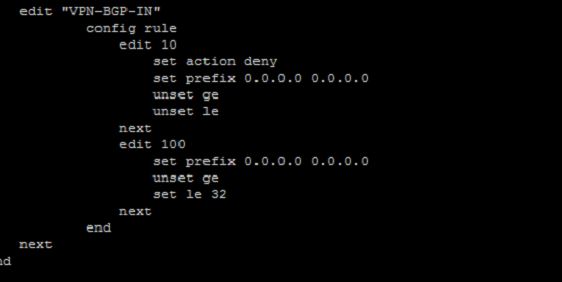
First thing we need to do is create a Prefix list to either allow or deny the routes we want. In this case I want to filter out the default route that is being propagated to me.

config router prefix-list

prefix.

The things to note, rule 10 – I match that route exact (default). then in rule 100 I allow any other prefix – hence the “le 32”. that means anything that starts from 0.0.0.0/0-32 and since the 0/0 is blocked already in policy 10- everything else is allowed.

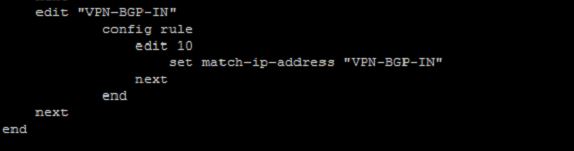
The we need to create our Route map to allow these routes on our in bound direction

config router route-map

Route-map

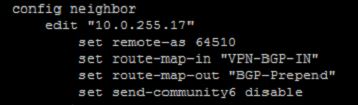
Then lets apply the route-map to our peer.

config router bgp

bgp

After applying the route-map to the inbound direction we need to clear BGP either soft, or full to make our routing changes take effect.

Run this command to check the BGP advertisements for changes, and synchronize after that.

exe router clear bgp all in soft, or clear both directions (softly) with exe router clear bgp all soft

That should do it, and you will see the default route disappear from the routes learned from your peer. You can also do this to filter routes to any destination network.


Blocking geographic regions in Fortigate 5.4

The best docs are always at docs.fortinet.com

Sometimes I get asked by clients how to block know attacking countries like Russia, or China from accessing their websites. I often hear that only US connections would be accessing their services so why allow others who might not be on the up and up.

Of course most attackers might pivot from compromised computers in the US, and thus bypass this security feature, but either way its not a bad idea. The below gives a good example on how to create a firewall “country” group and then block those countries from accessing any services hosted through the firewall. This will be done in Forti-OS 5.4.0. Its really the exact same steps in 5.2.

Also, there are many ways to do this. Instead of blocking Geographic regions you could only allow the ones you want to give access to.

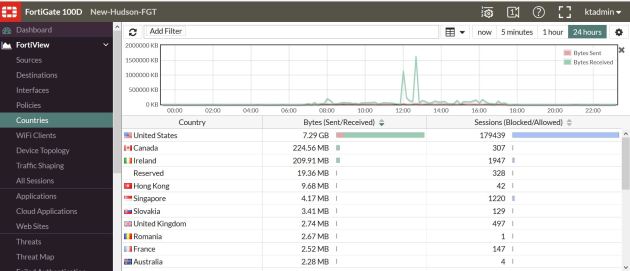
Before beginning it might be a great idea to check out the new Fortiview feature to see what countries access your services the most. Under Fortiview- you can now see the countries tab.

Monitor-Countries


Great, so in this example lets block the region of China – I know its not one of the top countries accessing my services.

First lets create the address object that we want to block. In this case I am setting the name of the address object as the country I am blocking. After creating the country object, I will create an address group call “Country blocks” add this to my firewall policy. That way in the future if I want to block Ireland, I can just add that object in the group and I am done.

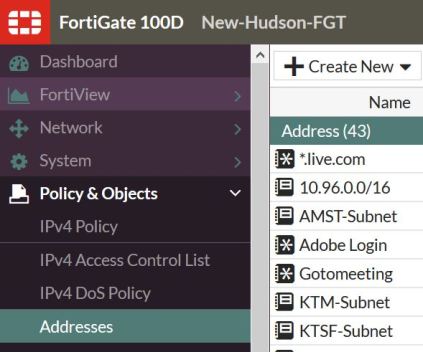
Creating the address object for “China”. First go to “Policy & Objects” and create a new object.

create address

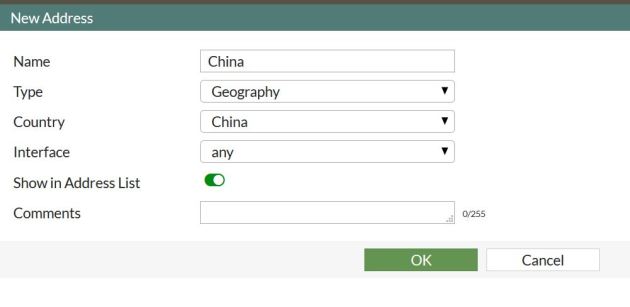
Next we will fill in the needed info, and change the address type to “Geography”.

China

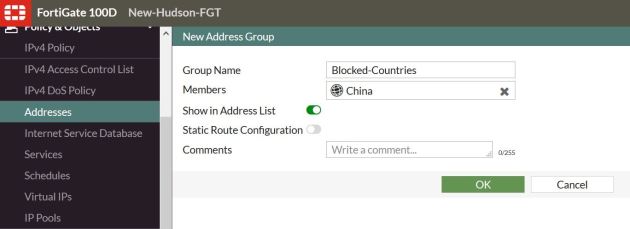
Now lets great that group, and add the “China” object to it.

Country-Group

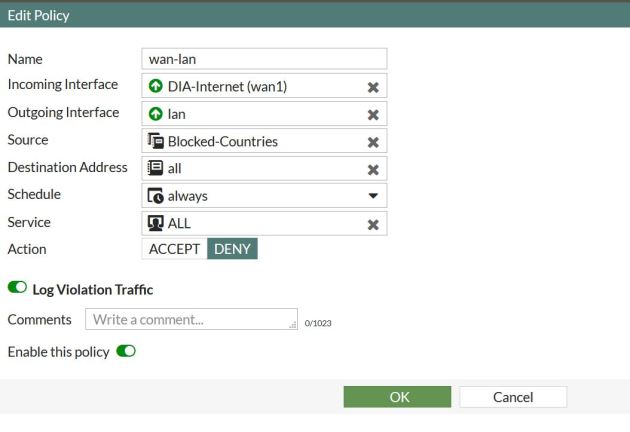
Awesome, now just one more step – creating the firewall policy to block this address group.

block-policy

Press OK, move this policy to the top of all WAN-LAN or your interfaces policies. This way it gets hit before anything else.

There are more ways than 1 to do this. when allowing traffic into your VIP or policy you could instead specify only the allowed countries.


Foritgate 5.4- Changing the interface theme

In 5.4 you now have the option to change the interface color. This is a great setting, because I am not a fan of the emerald green interface that’s default.

This is a great option, and easy to change.

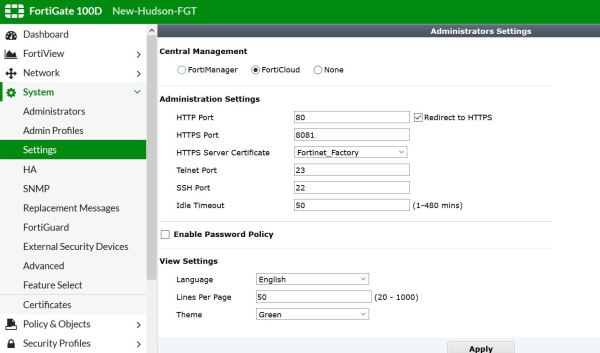
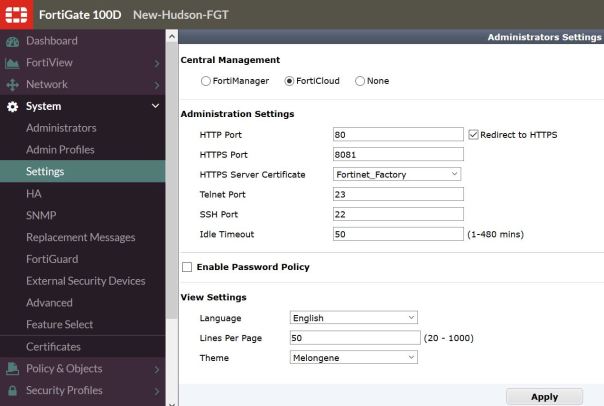
To change the color just navigate to System – settings. At the bottom under view settings you will see the option to change the theme. There are currently 4 colors available. Green, red, blue, and my favorite Melongene. Good Job Fortinet!

Below are screenshots of how to do this.

Default color theme:

color-1

Changing the theme to Melongene

color-2

Fortigate BGP aggregate address

I like to keep routing tables as clean as possible, and if your IP design and structure allows for very classful subnetting then there is no reason, I see to advertise all of your individual subnets when you could just have one aggregate address advertise out instead. Of course there are numerous reasons why you would not want this, route manipulation, etc.. but not in this case.

At this site my networks all fall into the 10.56.0.0/22 subnet.

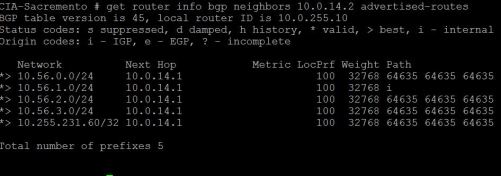
As of now, my networks that are broadcasting to my BGP peer look like this:

adver

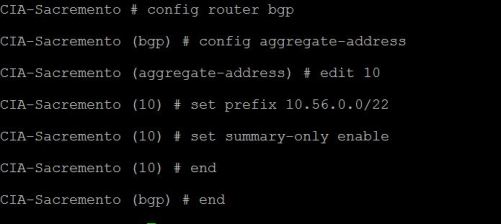
The commands to enable route aggregation is listed below. What happens is that any networks within our aggregation block will stop advertising and in their place one summary route is added and advertised.

commands

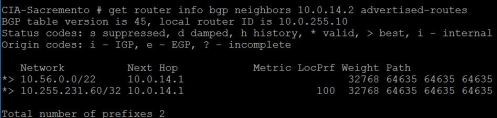
Now a get router info bgp will show that we went down from advertising 5 networks to advertising 2. This might not seem like a big deal, but if you had a large BGP network, with 100 sites like this, then aggregation can make a huge difference in router performance.

after-agg


Fortigate Radius group authentication

The Fortigate firewall has a limitation of 10 LDAP servers that you can have on one FGT to do look ups. Normally this is not a problem in the least. Unless you have over 10 domains that you need to do lookups on. To get past this limitation there are a few options, one – Fortiauthenticator, or another option is to use Radius, and authenticate against all the domains. The latter is what I chose. I needed this to authenticate many user groups for different domains for the SSL VPN. So this is Radius authentication for the SSL VPN.

So setting up Radius, and the Fortigate to use radius for authentication was no problem. What was a problem though, was sending the group that the user should be in over to the radius server. I found that if I set the remote server group under the user group properties that authentication would fail. If i removed the group all would work perfectly but if you have multiple network policies on the Radius server, and maybe a user lives in two different policies then there’s a chance that it could authenticate incorrectly and give access to a user who should not have it. This could be bad.

After doing a lot of research I found that Fortigate should be sending in the group when configured under the user group as an attribute value pair, and given the NPS server understands how to handle the attribute it should work very nicely. I found the documentation on this KB article to be very old so I am writing my own, which you are reading.

So to recap what the below shows:

  • Creating a radius server int the FGT
  • Creating a user group, which references the Radius server, and then specifying a user group to match in Radius (NPS)
  • Creating the radius policy, with the needed attribute pair within NPS.
  • Results in Wireshark and exactly what is happening

Below are the links from Fortigate:

http://kb.fortinet.com/kb/documentLink.do?externalID=FD36464
http://kb.fortinet.com/kb/viewAttachment.do?attachID=Importing_Fortinet_VSAs_into_Windows_2003_Server.pdf&documentID=FD30830

First lets setup the Radius server in the Fortigate

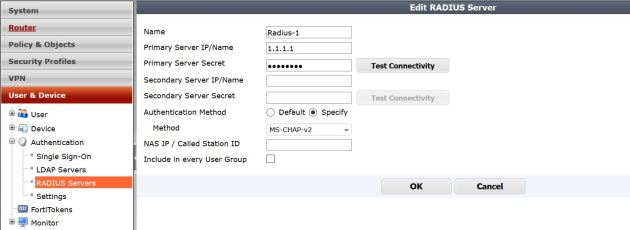
Below is the image of my Radius server setup – pretty simple. Take note that I changed my authentication method from default to MS-CHAP-V2, this is what I set on my NPS server.

Create-Radius

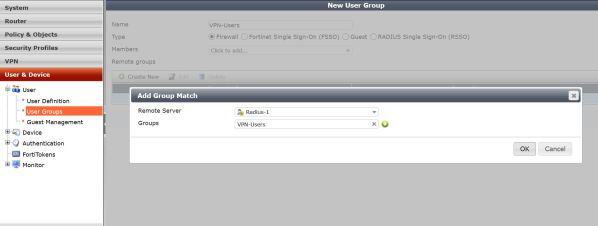
Next lets setup the user group. Notice this is a firewall group. You also have to manually type the user group since it does not exist .

User-group

I will omit the sections showing creating the SSL VPN tunnel policy, and the IPV4 policy allowing traffic in.

Now lets modify NPS. We will have to add a vendor specific attribute for the group name, and then match that in our policy.

Fortigate lists their attributes as below. Lots of cool options you could add like Vdom.

VENDOR Fortinet 12356
BEGIN-VENDOR Fortinet
ATTRIBUTE Fortinet-Group-Name 1 string
ATTRIBUTE Fortinet-Client-IP-Address 2 ipaddr
ATTRIBUTE Fortinet-Vdom-Name 3 string
ATTRIBUTE Fortinet-Client-IPv6-Address 4 octets
ATTRIBUTE Fortinet-Interface-Name 5 string
ATTRIBUTE Fortinet-Access-Profile 6 string

In NPS we have create our policy to grant access to the group we want. That’s no problem. I will omit steps to add the Network policy to allow access. After we get all the policy options we want , and select the group we want to grant access to we need to configure a Vendor specific option to match the group to the Fortigate.

Below are the pictures of exactly how to do that.

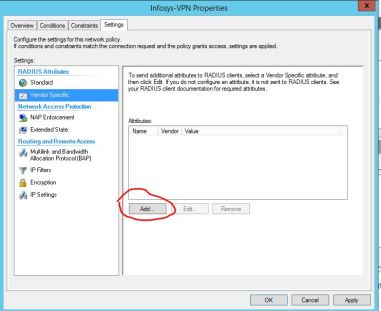
on the settings part of the Network Policy, click on “Vendor Specific” and select the option to add one.

vend-spe-setup

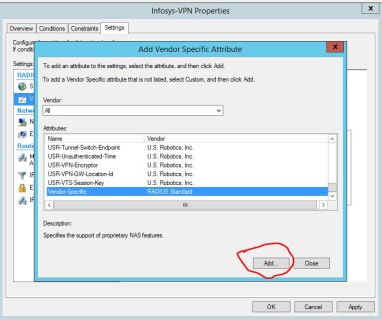
Add the vendor specific attribute

vend-spec-setup-2

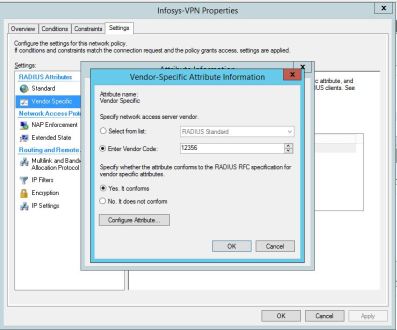
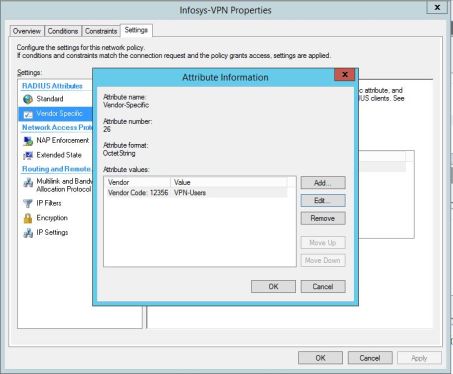
Now lets configure our needed vendor/attribute. , and set it in the policy. Notice that we are entering the Vendor code that Fortinet gave to us through those links. Then we will configure the attribute itself.

vendor-spec-2

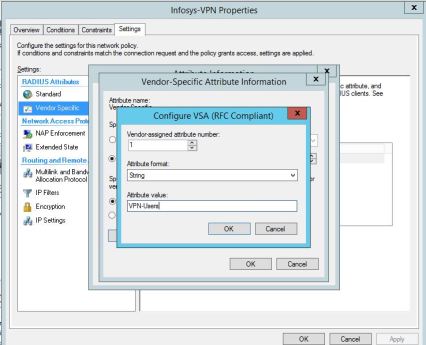
Here we are filling in the values for the attribute. VPN-Users is what I am matching for my attribute string. If the user is not in the group VPN-Users, then it should deny them.

vendor-spec-3

Thats it! our attributes are in and if the user is not specifically in the group VPN-Users then they will be blocked from accessing the VPN.

vendor-spec

Under the hood

So what is actually happening here? it seems that when the user attempts to log in, the Fortigate will query the radius server and send the user credentials over and if access is granted – will allow the user to log in.

In Fortinet documentation they show that the Fortigate will be sending the group over to the radius server, if it matches the Vendor attribute we set, then access is granted. This is not what I have found to be the case (could be wrong). What I have seen happen is, the user attempts to login, Fortigate send the user creds to Radius , the Radius server grants access to the user (if the user meets the policies) and sends the group specified in the Vendor attribute back to the fortigate. The Fortigate then checks to see if that attribute matches what is configured in the Fortigate user group. If that matches, it allows the user to login.

To back this up – check out these Wireshark logs.

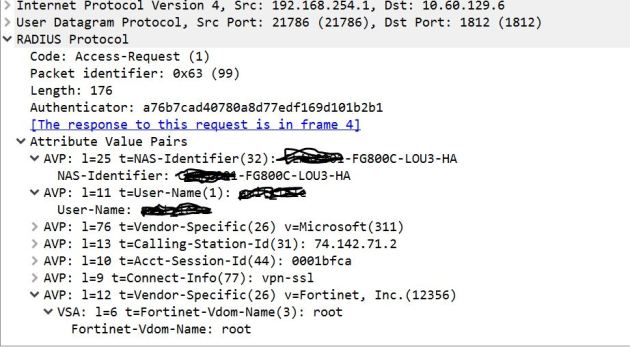
Fortigate to Radius server –

Notice that the User name is sent, but no group name

radius-wire-1

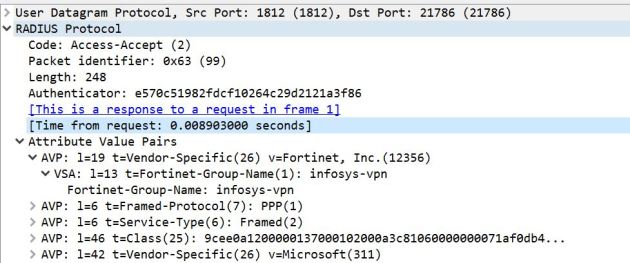
Radius response to Fortigate – Notice the group name (which in this case is infosys-VPN) that group is what in this example is being matched by the Fortigate, and the code of Access-Accept.

To go even further I have tested by removing the group or changing it to something other than whats in the Fortigate and it will fail, even though radius said the user was accepted. When running those tests where I change the group that was passed back to the Fortigate, I got an error on the FGT that said the user group was wrong.

Radius-wireshark

So in the end, the Fortigate is making the decision to allow the user to authenticate based on the user group after radius allows the user based on credentials and policy.


Fortigate SSL VPN – Portal DNS

I have been working with Fortigate for a long time now, one thing that bugged the life out of me (and most clients I work with) is that Fortigate’s SSL VPN feature would not allow you to specify certain settings per portal or group. For example DNS servers and Domain suffixes. Most firewall/router vendors have been able to do this for years and with no problem.

Starting in firmware 5.2.2 you can now specify individual DNS servers per portal! That’s right, if I have two different domains using the SSL VPN and I specify individual user groups and portals, now I can give each side their own specific DNS servers.

The DNS setting per portal is CLI only as of firmware 5.5.5 – I see this changing in future firmwares (Still has not changed in 5.4.1 either) .  The modification is under the VPN – SSL  – Web portal options. You can also specify individual WINS servers. This entry is written for someone who already has the SSL VPN up and working. Something to note is that these portal settings override the global DNS settings configured under

config vpn ssl  web portal

edit “Sales-Portal”
set tunnel-mode enable
set ip-pools “VPN-Pool”
set split-tunneling-routing-address “SSL-VPN-ROUTES”
set dns-server1 10.60.134.5  — DNS Server 1 , Overrides global config
set dns-server2 10.60.134.6 — DNS Server 2 , Overrides global config
next

And there we have it! We then can of course associate the portal with a certain group of users, so for example Domain 1 get Domain 1’s server and same for Domain 2.


Fortigate Login Banner

Login banners are a great way of explicitly asking users if they are authorized to log in, show your legal terms, or just leave a message for users when they log in such as ‘don’t forget to backup the configuration’ .. etc.

In Fortigate login banners are very easy to write and enable. Just a few options need to be tweaked.

The banner can be modified by going to – system – config – replacement messages. Select the extended view at the top right, and then you will see the login banner, both pre and post. Pre is show before you login, post is shown after. The messages can differ. After you modify the message, remember to save.

replace

Switch to extended:

extended-view

Editing banner:

shall-not-pass


Now we need to enable the banner to show in CLI – to do this modify the global settings .

cli

Now the banner will prompt.

If Pre-login-banner is enabled the banner will show as soon as you go to the page to login – before you even get prompted to log in. Post will prompt after login. This is what the banner looks like:

banner-show

Fortigate FSSO and LDAP source IP

I was presented with a scenario the other day where we had two sites connected with a Site-to-Site VPN. The VPN was up and working great, but FSSO and LDAP would not connect to servers on the other side of the VPN for lookups.

This made sense because I knew the fortigate was using its outside (Public) IP for lookups and obviously that was not in my Phase 2 subnets to encrypt. So how can I change this?

Note, these steps change the source IP that the FGT uses to query LDAP or FSSO.

There are options in both objects (FSSO, and LDAP) In CLI to change the source IP address. See below

LDAP Source IP change

First log in through CLI, and edit the object, Then set the source IP. Once you end the CLI session it should be changed.

show ldap

Now set the source IP address of the connection

Set Source IP

Once you enter this and then end the session via the key word ‘end’ you will set the command.

Before moving on to the FSSO settings, here is a list of options available:
options


FSSO Source IP change

In CLI edit the FSSO object with the below commands, modify the source IP as below, and end the console to set the commands.

FSSO-show


fsso-source-ip

Once you enter this and then end the session via the key word ‘end’ you will set the command

That should be it! You modified your source IP to something in the encryption domain and it should now talk to the remote side and be able to do lookups.

Just in case below are all the options available under the FSSO.

fsso-show-options