Category Archives: Fortigate

Fortigate SSL VPN configuration on 5.2

First off the best documentation can be found at docs.fortinet.com

Fortigate has changed a lot in 5.2, one of the things that has been changed heavily is how to setup the SSL VPN. Some of the ways it has changed:

– Portal creation

– Settings

– Firewall policies (for interfaces)

So to enable and create needed policies for the SSL VPN to function we will create a scope 10.99.255.0/24 for our VPN subnet, and make sure our two local networks are being sent to the clients routing table VIA Split tunneling – our local subnets 10.32.250.0/24 and 10.32.251.0/24.

First lets create the address object for our SSL VPN clients

ssl-5-2-address

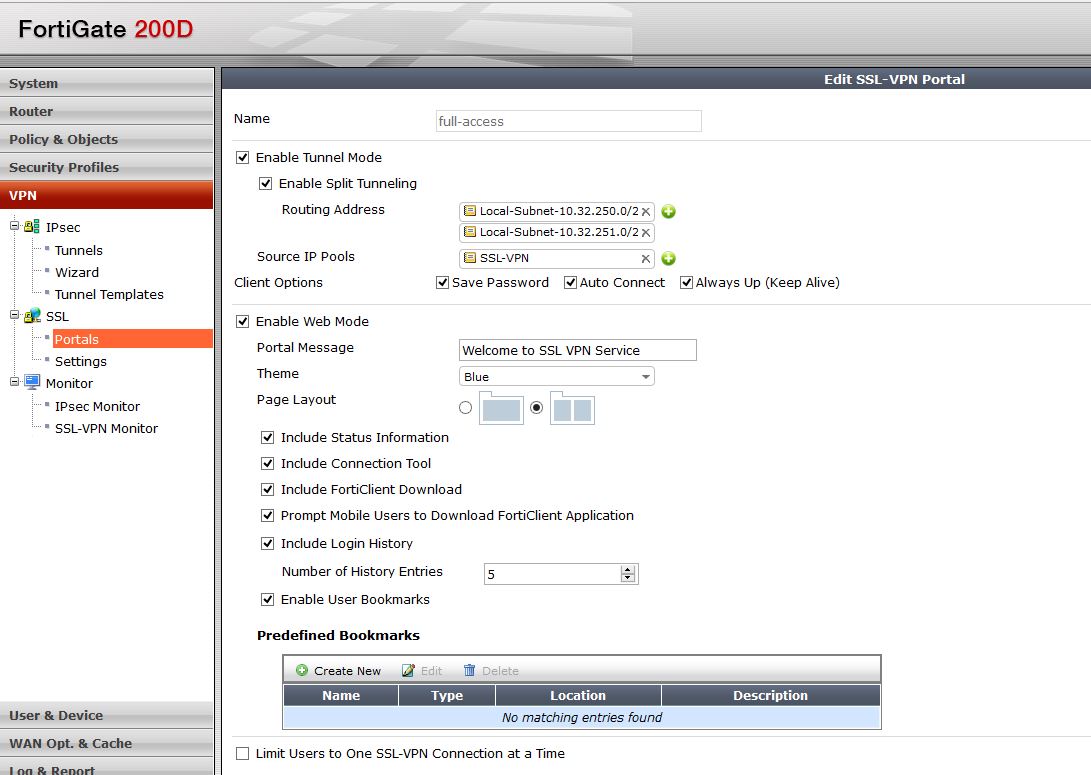
Portal Config

In the portal we can configure Split tunnel, IP Pools, bookmarks etc. 

You also have options to save the password and the allow more than one instance of that user to login.

SSL-5-2-portal

VPN Settings

Then we will start to configure settings for our VPN. Notice that it is much different than 5.0. We configure the port, VPN client addresses and who can access the VPN from here. Before it was in many different places. Also notice at the bottom there is the users who can log into this device, and what portal they will see. You can totally customize this so that domain admins get one portal and restricted users get another.

ssl-5-2-settings-2

You will see that after you configure what is needed, there is a red line that comes up and says “default users not configured” if you only have one profile then modify this. If you have multiple portals then add the most specific first, then make the standard catch all this profile.

Firewall Policies

Next we need to create firewall policies to allow traffic to and from our VPN. This is also a big change from 5.0 where you would need to create a default WAN-LAN policy and have the service be SSL, here that is really done in the vpn-settings page.

So lets allow VPN traffic to our LAN and make sure we are using the network address objects that are specified in the Split tunnel policy under the portal. Adding the local subnets basically allows VPN clients to have access to those networks. You could use Any here, I chose to use my local subnets.

SSL-5-2-Policy-1

Then create the opposite of that policy to allow traffic from the lan to access the SSL VPN interface.

SSL-5-2-policy-2

One more thing is needed – We need a route to that SSL VPN subnet.

SSL-5-2-Route

That should be pretty much it. There are some considerations that should always be taken into account. For one, always evaluate the security that you need. In this example I did not add any UTM or restrictions to who can access the VPN, and to what servers/addresses. Something else – Notice that in the VPN-Settings page, if you are doing Forticlient registration, you need to make sure that option is checked so registration can be used on that interface. One of the other things to think about is the amount of time users stay logged into the VPN.

After enabling that your VPN should work great!

Feel free to contact me if you have any problems

Fortinet Apple Caching

Apple Caching server is a very cool idea. I am not a big apple fan, so I don’t know exactly how it works. From what I have seen, you install the software on a server. Apple servers cache apps and files that many devices will ask for, therefore when one user downloads a file it caches it on the local servers. When another user coming from the same public IP address downloads that same file, it pulls it from the caching server thus eliminating the bandwidth need.

Apple has a run down of exactly what happens:

http://help.apple.com/serverapp/mac/3.0/help/#apdC36C9994-1533-4DCB-9CFF-870CB0FADCDB


But how do you make sure Apple caching is working correctly in your network. By default everything should flow out of your default nat policy – but what if you have a bunch of different nats?

you want to make sure that your caching server and clients are seen by apple as the same IP address.

I do this this through a internal to wan policy and make sure that anything going to 17.0.0.0/8 (apple owns this whole block) and anything going to .apple.com goes out of the same policy.

you can do this with a Address object, and firewall policy to go out via that policy.

Fortigate Explicit proxy PAC file

The Pac file can be used with the Explicit proxy of the Fortigate. The PAC file uses Java Script to modify the Explicit proxy to be able to do certain things. For example, if you do not want to use the proxy when going to certain websites/networks, or return different proxies. By returning different proxies you could theoretically load balance requests. I am using this pac file at a school where we proxy all Students Ipad traffic back to the fortigate for web filtering/logging.

The PAC function is FindProxyForURL(url, host). There are a number of functions available –  A few are:

dnsDomainis() – Returns the domain name of the requested server

isNET() – This function will return true if the host is in the subnet you are specifying.

For example – (isInNet(host, “192.168.0.0”, “255.240.0.0”)) return “DIRECT”; – This would not proxy traffic for anything on the 192.168.0.0/16 subnet.

shExpmatch() – This will evaluate the URL you enter, and compare with the request. So for example

if (shExpMatch(host, “*.google.com”)) {return “DIRECT”;} – This would not proxy traffic goig to google.com


There are about 10 functions – including Days of the week, time ranges etc. A quick google search will show all – but here is a link from our friends at Websense: http://www.websense.com/content/support/library/web/v76/pac_file_best_practices/PAC_best_pract.aspx

Below is an example of a Fortinet PAC file to bypass the proxy to many websites (return Direct) otherwise return the proxy.

—————

function FindProxyForURL(url, host) {

if (shExpMatch(host, “*.akadns.net”)) {return “DIRECT”;}
if (shExpMatch(host, “*.akamai.net”)) {return “DIRECT”;}
if (shExpMatch(host, “*.akamaiedge.net”)) {return “DIRECT”;}
if (shExpMatch(host, “*.akamaihd.net”)) {return “DIRECT”;}
if (shExpMatch(host, “*.amazon.com”)) {return “DIRECT”;}
if (shExpMatch(host, “*.amazonaws.com”)) {return “DIRECT”;}
if (shExpMatch(host, “*.apple.com”)) {return “DIRECT”;}
if (shExpMatch(host, “*.dropbox.com”)) {return “DIRECT”;}
if (shExpMatch(host, “*.edim.co”)) {return “DIRECT”;}
if (shExpMatch(host, “*.edmodo.com”)) {return “DIRECT”;}
if (shExpMatch(host, “*.icloud.com”)) {return “DIRECT”;}
if (shExpMatch(host, “*.ket.org”)) {return “DIRECT”;}

if (isInNet(dnsResolve(host), “10.11.0.0”, “255.255.0.0”)) {
    return “DIRECT”; — if the server is in my local subnet
}
if (isInNet(dnsResolve(host), “10.44.0.0”, “255.255.0.0”)) {
    return “DIRECT”; — or this subnet
}
else{
return “PROXY example:8888; PROXY example2:8888”;
}
}

Password protect Forticlient registration

The other day I needed to lock down who can connect to our Fortigate to register a forticlient. This was very important due to that fact we were pushing VPN policies to our clients.

You can configure a Password for client registration by going to System – Config – Advanced and its right there.

Capture

To register the client open Forticlient and at the top right you will register – it will then prompt you for that password before you can register.

regi

Fortinet AS Path filtering with Regular Expressions

Recently I had a project where 1 Fortigate had two MPLS networks connected for redundant connections. These two MPLS networks were from different providers. I had a few problems where networks from other peers were transiting through my device to be advertised out to these links. I did not want this to happen. There are many ways to do this exact thing, but what I did was use an AS path filter with regular expressions to find anything passing through my remote peers and block them going out on the opposite peer. The image below will sum up what I just wrote a little better:

Path-filtering

So as with almost all BGP commands on Fortinet – they have to be done through CLI. The following are the commands needed to create the AS-Path list, Create the Route map, then apply the route map to our neighbor. We are using regular expressions to map grab our AS path, you might say what the heck is a regular expression? Here is a link that explains how to put an expression together http://blog.ine.com/2008/01/06/understanding-bgp-regular-expressions/ . If you notice what I am doing “_65000_” This basically says that if 65000 is in the AS Path block it. the _ is a space so my expression reads – Anything before 65000 or after 65000 gets blocked. For example, if you wanted to block routes that originate from 65000 you could do “_65000” or “_65000$” The dollar sign means that is the end of the string, so nothing else beyond that.

config router aspath-list
edit Match-L3
config rule
edit 10
set action deny
set regexp _65000_
end
next

edit Match-WS
config rule
edit 10
set action deny
set regexp _65400_
end
end

config router route-map
edit Block-WS
config rule
edit 10
set match-as-path Match-WS
next
edit 11 — Note- There is a deny all on the Routemap, this rule 11 basically says permit anything else
end
next

edit Block-L3
config rule
edit 10
set match-as-path Match-L3
next — Note- There is a deny all on the Routemap, this rule 11 basically says permit anything else
edit 11
end
end

config neighbor
edit “2.2.2.1”
set capability-default-originate enable
set remote-as 65400
set route-map-out “Block-L3”
set send-community6 disable
next

edit “1.1.1.1”
set remote-as 65000
set route-map-out “Block-WS”
set send-community6 disable
next
end

Now we have to flush those routes, we can do this with the command:

exe router clear bgp ip 1.1.1.1 soft out
exe router clear bgp ip 2.2.2.1 soft out

After you clear you should see a good drop in routes being advertised to those neighbors.

get router infor  bgp neigh 1.1.1.1 advertised-routes


Fortigate option to bypass hardware comparison for HA

Today I had an issue while configuring two 60c’s in an HA configuration. This usually takes about 2 minutes and is extremely easy. Unless your hardware doesn’t match. HA requires that hardware matches on the two different units. When these were purchased the hardware did match, but at sometime in the past, one was RMAed and we received one with a hard drive. This broke the HA capability.

The error I kept seeing was about the hardware not being the same. The error was: “slave and master have different hdisk status. Cannot work with HA master. Shutdown the box! The system is halted.”

This command can get you past that:

exec ha ignore-hardware-revision enable

This will allow the HA cluster to ignore the hardware-revision for the frigates and come up.

There are a lot more things that will cause problems, for example if your drives have been formatted with a pervious version of fortios. You might need to run :

exe formatlogdisk

Fortigate and VRRP

Fortigate supports many HA options. They have a great active/passive HA option, as well as Active/Active. VRRP is another option that is supported. VRRP (Virtual Routing Redundancy Protocol) is a open standards protocol that helps eliminates the single point of failure for a network by allowing another device to take over routing automatically.

Basically one router is the Master (active), the other is a Backup (passive), the selection of which device is active or passive is based priorities of each device, highest priority (1-255) is the most preferable. The priority of 100 is default, and 255 the best. There is a heartbeat which is just a Multicast packet,  that goes across a link that both devices use (normal lan link is fine). If for some reason that heartbeat is lost , then the backup router will take over as the master.

VRRP is a great way to make sure that if one router fails the passive router will become active and take over routing for the network.  VRRP creates a virtual mac address that is shared between the two devices, the active device answers for the virtual mac and takes control of the Virtual IP that is also shared between the two.

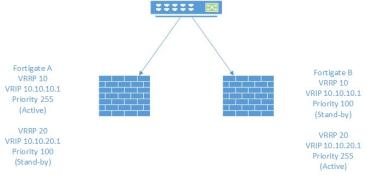
You can use VRRP to load balance traffic as well. Load balancing is achieved by using to different VRRP groups, and balancing which router is primary for what group. The below image should help clarify what I mean.
 

Image

You can use those two VRRP groups as primary and secondary’s for the default gateway in different vlans. So in this case, you could have Vlan 10’s default gateway on Fortigate A, and Vlan 20’s on Fortigate B, therefore having fail-over for both, but splitting up the load. This might be a great thing to do if you have a HA cluster of 60C’s, and they just cant handle the full traffic load in a HA scenario. Remember. each config is different on these firewalls, there is no config sync. There is an option to sync sessions between the firewalls, so that if one firewall were to fail, things would pick right back up and not have to establish the sessions again.

Things to note in this config – There is already an IP address assigned to the Vlan interface for management when when the VRRP address might not be active. I am also using the Preempt option to make sure Active is always Active if its online. The Physical interface the Vlans are configured on are trunks on both links going to Fort-A, and Fort-B.

Config time:

The config for VRRP is interface based, and CLI only.

Fortigate A:

config system interface

edit vlan-10

config vrrp
edit 10
set vrip 10.10.10.1
set priority 255
set status enable
set preempt enable
end
set vrrp-virtual-mac enable
next

edit Vlan-20
config vrrp
edit 20
set vrip 10.10.20.1
set priority 100
set status enable
end
set vrrp-virtual-mac enable
end

Fortigate B:

config system interface

edit vlan-10

config vrrp
edit 10
set vrip 10.10.10.1
set priority 100
set status enable
end
set vrrp-virtual-mac enable
next

edit Vlan-20
config vrrp
edit 20
set vrip 10.10.20.1
set priority 255
set status enable
set preempt enable
end
set vrrp-virtual-mac enable
end

This config will do exactly what we want, create a Virtual IP that is shared, and make sure the configured active (priority) unit takes back over the role of active if it goes offline and comes back online (preempt),
Fortigate HTTPS inspection Certificate error fixes

*Note – Most of these issues have been fixed in 5.2. By default now, if you select https inspection – Certificate inspection you will just get a blank page when you go to a https that is not allowed.

The Fortigate Web filter is amazing! I think it stands up to the best web filters out there.

But, like all webfilters SSL can be a bit tricky. Fortigate offers its own SSL Certifcate “Fortigate-CA-Proxy” to the client when it does a few things:

1. Deep packet inspection (imagine a man in the middle attack). This way the Fortigate sees all traffic that comes in the session even if it was encrypted.

2. When it sends its replacement message (Blocked) to the client.

Some problems come up with this. The cert has to be trusted by clients, this can be easily done if you have a internal CA, or you could create a Windows group policy to push the certificate into their trusted store. I know you might ask, what if I get a signed cert for this? The certificate is a CA-True certificate. That basically means you would have to get a certificate from a trusted publisher that says you are a public CA. I would say most CA’s would not give us one. But what if you want SSL inspection for Guest clients but don’t want them to see the cert error? The answer lies below friends. Something to remember is you have to have SSL inspection enabled on the firewall policy to get HTTPS inspection to work.

To have the Fortigate block the website without giving an error there are a few things that need to be done:

1. Select the webfilter to use https-url-scan to only look at the URL, not to use deep scanning

2. set the Fortigate to not respond with a replacement message. Remember it responds with a HTTPS blocked page – so  therefore you see the HTTPS cert.

As of Patch 7 this is a CLI command.

To enable HTTPS-url-scan which looks that the URL not the traffic going through:

config webfilter profile

edit default (or your profile name)

set options https-url-scan

end

To disable the HTTPS replacement message:

config webfilter profile

edit default (or your profile name)

set https-replacemsg disable

end

To give an example:

Lets say I block the category “social networking” and go to http://facebook.com it will be blocked. If I go to https://facebook.com it will show a blank screen – no error message, but will not work. Before enabling these commands I would see the error message, then after accepting the cert I would see the block page.

Note* there might be a way to have the replacement message be http, instead of https. I am looking into this.


Fortigate interface Speed/duplex

Hard coding speed and duplex settings on a device is very important. Some times it is essential to hard code your settings to work with and ISP or neighboring device. To change the speed/duplex settings manually you will need to use a CLI command. The default setting is to Auto Negotiate, but as we all know sometimes on the ISP or local side it can negotiate to half duplex, or never correctly negotiate.

Check Speed/Duplex

How check speed and duplex of the interface:

Fortinet now has the ability to see speed/duplex by hovering over the interfaces in the GUI. This option became available in MR5 patch 4 i think.

Image

To check this through the CLI there are a few ways to accomplish this. two command that can do this are:

get system interface physical

Image

This command shows the IP, status, and speed/duplex.

The next command is:

get hardware nic X

Image

This command gives you much more info, such as errors and drops.


Setting speed/duplex

To set the Speed and Duplex of the interface to 1 gig full duplex use the cli commands:

Config system interface

edit X

set speed 1000full

end

Image

Thats, it! Notice that get system hardware nic gives you all kinds of stats about that interface.