Category Archives: Fortigate

Fortigate FSSO and LDAP source IP

I was presented with a scenario the other day where we had two sites connected with a Site-to-Site VPN. The VPN was up and working great, but FSSO and LDAP would not connect to servers on the other side of the VPN for lookups.

This made sense because I knew the fortigate was using its outside (Public) IP for lookups and obviously that was not in my Phase 2 subnets to encrypt. So how can I change this?

Note, these steps change the source IP that the FGT uses to query LDAP or FSSO.

There are options in both objects (FSSO, and LDAP) In CLI to change the source IP address. See below

LDAP Source IP change

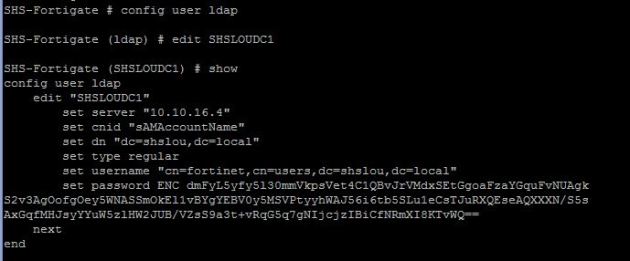
First log in through CLI, and edit the object, Then set the source IP. Once you end the CLI session it should be changed.

show ldap

Now set the source IP address of the connection

Set Source IP

Once you enter this and then end the session via the key word ‘end’ you will set the command.

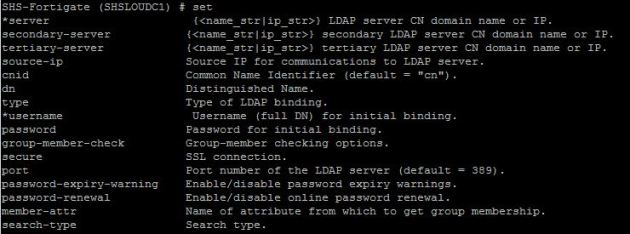
Before moving on to the FSSO settings, here is a list of options available:
options


FSSO Source IP change

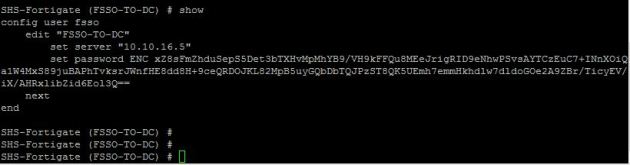
In CLI edit the FSSO object with the below commands, modify the source IP as below, and end the console to set the commands.

FSSO-show


fsso-source-ip

Once you enter this and then end the session via the key word ‘end’ you will set the command

That should be it! You modified your source IP to something in the encryption domain and it should now talk to the remote side and be able to do lookups.

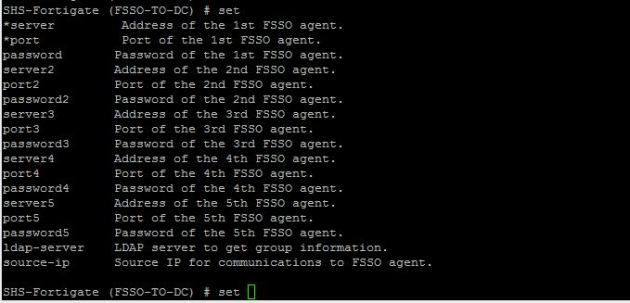
Just in case below are all the options available under the FSSO.

fsso-show-options

Fortigate Radius SSO with Ruckus 802.1x logins using NPS

This is an amazing method for getting users in their correct groups in Fortigates. This way we can apply different security profiles to individual groups, all through one 802.1x login. This example is using Ruckus wireless , but will work exactly the same for any wifi vendor..

This method works by using 802.1x WPA2/AES logins on the Ruckus , and passing the users info over to the Fortigate by Radius accounting. Then on the Fortigate we are using RSSO (Radius single sign on) groups to collect the username/group that is sent to the Ruckus by the Windows NPS server. Lots of moving parts here, but it is really simple. I have had problems finding good documentation about Fortigate’s RSSO profiles – but they work great.

The goal of this project/entry is to have the Fortigate know the Username, IP and group (if assigned) of the user who just authenticated to the wireless network. Once you know these things you can apply different UTM policies to users VIA RSSO groups in the Fortigate. There are many good scenarios and uses for this – one example that I have is for a school network. I set this up recently for a school that has students and faculty authenticate through the same Ruckus controller, but to different 802.1x WLANs (SSIDs: Student and Faculty). The fortigate can then apply correct policies to each user (student or faculty) and therefore lock down student web surfing much more than a faculty member. You might be saying – you could just use captive portal on the fortigate,with LDAP groups. I would say yes, but that is another step users have to take, and its called “Single Sign on” for a reason.

So what is needed to make all this happen: Ruckus wireless using 802.1x, NPS (or any radius server) , Fortigate  – that’s it.

I am going to assume that we already have Ruckus using 802.1x and NPS with no problems.

I had trouble at first setting this up, because I thought that that the NPS server should send the radius accounting info to the Fortigate, I was wrong. The controller is the Authenticator – therefore the device that knows about the authentication, and needs to pass on the info to the Fortigate. The Authenticator (Controller) needs to send the radius accounting info to the Fortigate.

That means you have a AAA server setup on the controller for 802.1x authentication, and a AAA radius accounting server pointing to the Fortigate.

Setup Radius accounting between Ruckus and Fortigate

First we need to create the connection between Ruckus and Fortigate via radius accounting.

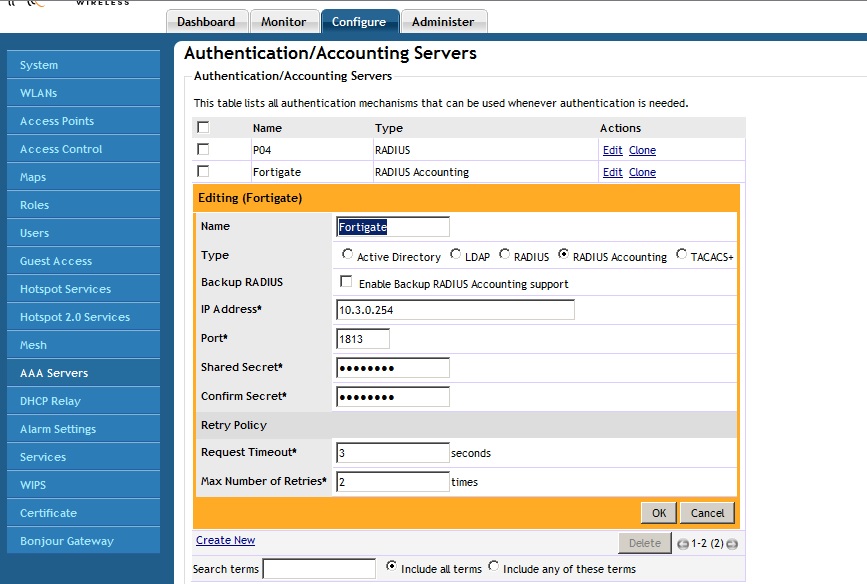
On the Ruckus system, go to Configure – AAA servers – create a new server. Then click the box that says “Radius accounting” Fill in the IP of your Fortigate, and create a PSK between the two.
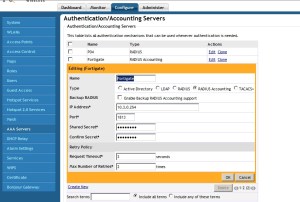
Ruckus-acct

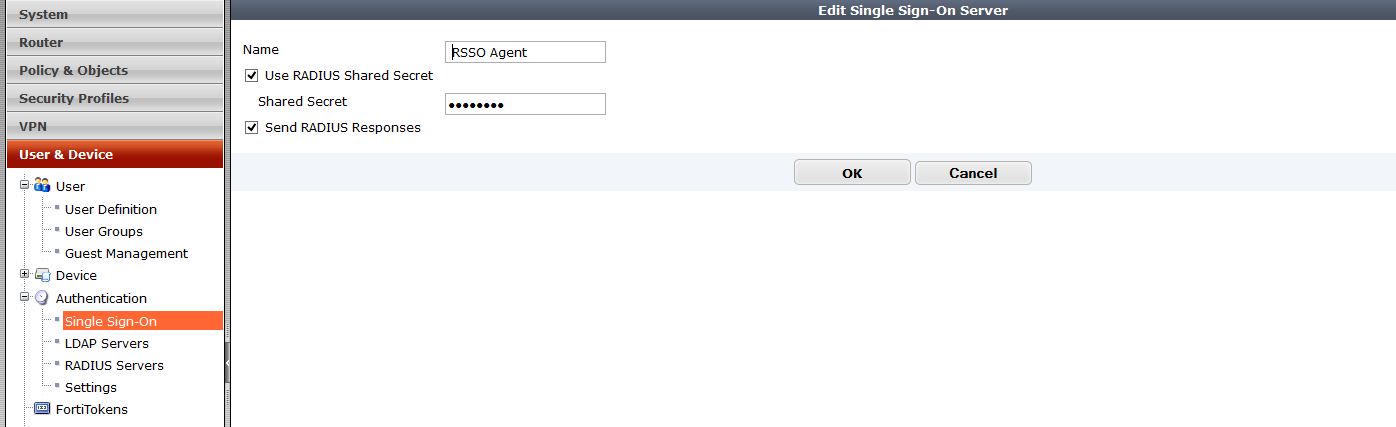
Next on our Fortigate we need to create a RSSO profile for the Ruckus system.
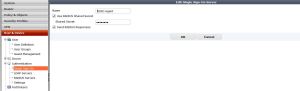
rsso-agent

Feel free to name this Ruckus or whatever. The PSK has to match what you created on the Ruckus system. By default the RSSO profile uses the Class variable to match the users. You can change what to match, for example you could match by NAS-Port, User-Name, Class, etc.

So, if we go into CLI we can modify many of these settings. Below are the settings I have used

config user radius
edit “Zonedirector”
set rsso enable
set rsso-secret ENC eoTXOqectoW0sjb5lLVW/7rr3BB0DocxlKeW64yfoIq7NTblyMc1TT9/V2M8m2LJmotwNrDYS+hOBSWV68wWULjuT88tOZHli7Nqqe8k5hoK4iHmLuG6x9R7apR9b+JU6O48mY8jiUaf48pY8wamagNdOALtrew6k+yWFzfd7gzo+qgag2sOI+Q46GnI1ybGPo6YQQ==
set rsso-endpoint-attribute User-Name
next
end

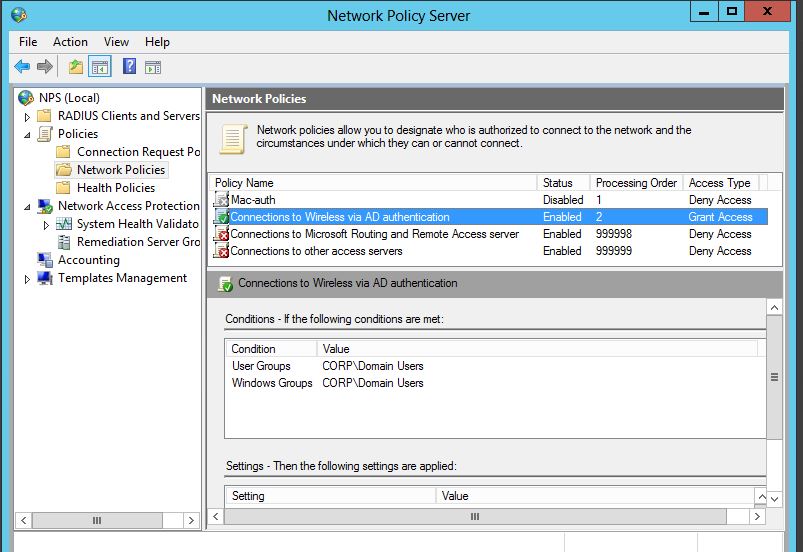
Next we need to modify NPS to send the values that we will match on the Fortigate. In this example I am matching I am saying that if any Domain users authenticate through the ZD, then send the IP/Username/”Tag” to the Fortigate so it knows who to apply the correct firewall policy to. My “Tag” I am sending in is the Class Variable of “Domain Users”..  Something to note is this is not the given AD group, but a variable I am assigning that just references the group. I could say “Social media” if I wanted, then match on that.

So lets modify the Microsoft NPS policies to reflect what we need.

Remember, we are going from the assumption that 802.1x is up and working, and NPS is great. So, how do we match a variable from NPS on the fortigate? We could really use a ton of different variables. Lets use the class variable. To assign the class variable we will modify the the Network Policy in NPS that we want to apply a to a certain criteria.
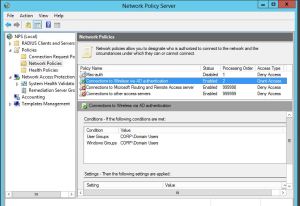
nps-policy1

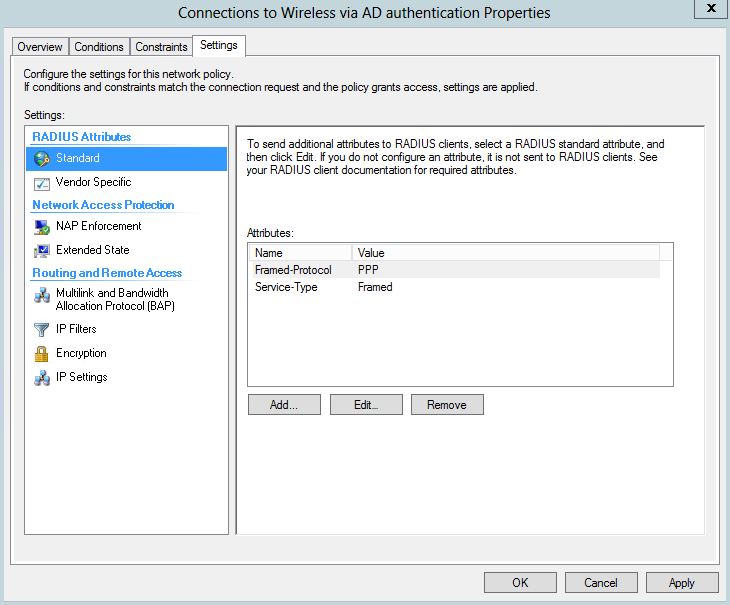
I will modify my “Connections to Wireless VIA AD Authentication” Policy. Then once, you edit the policy and go to “Settings” tab, there will be a few attributes already listed . You may have some already or not. We will add the “Class” variable, and then assign it to what ever value we want to match in the firewall group. In this case I am setting my value to “Domain Users”.
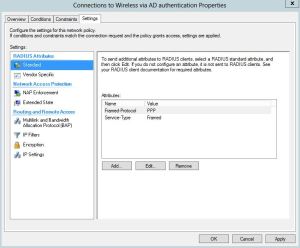
class1

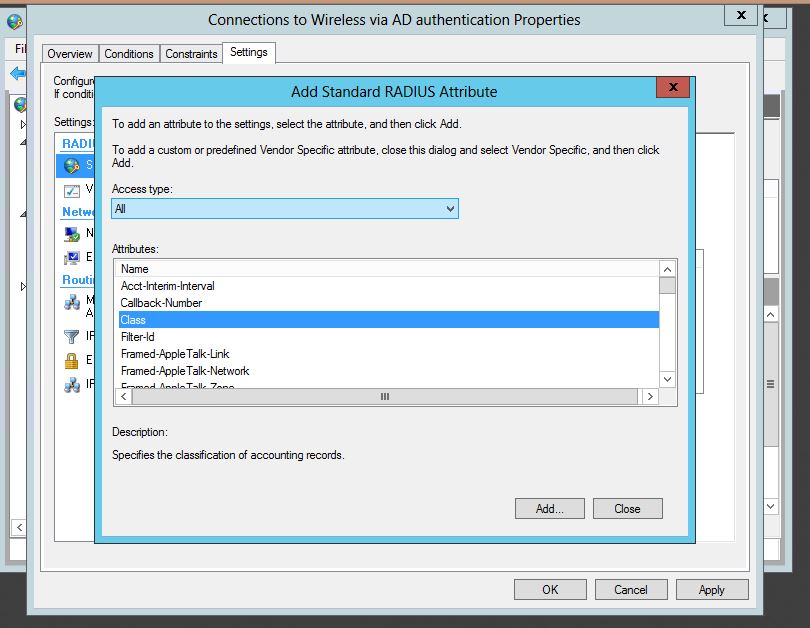
So from the settings tab, lets click “Add” under the Radius Attributes standard section.
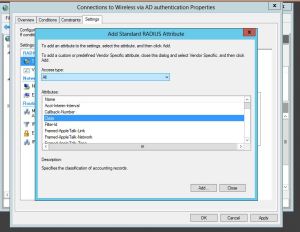
class-2

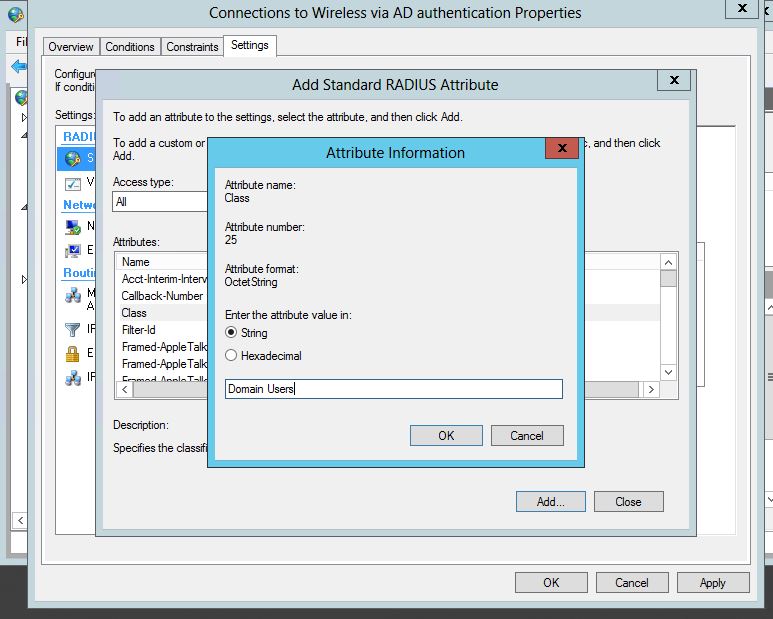
Select “Class” from the list of attributes that comes up, it will then  ask you to enter a string that you want to set. This is the Keyword you will use to match the user to group in the Firewall. Just like use a FSSO group and matching the domain group. Some examples might be students vs teachers, or Domain users.
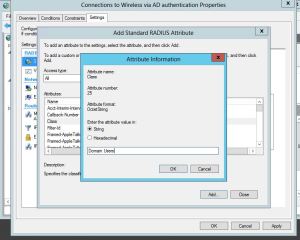
class-3

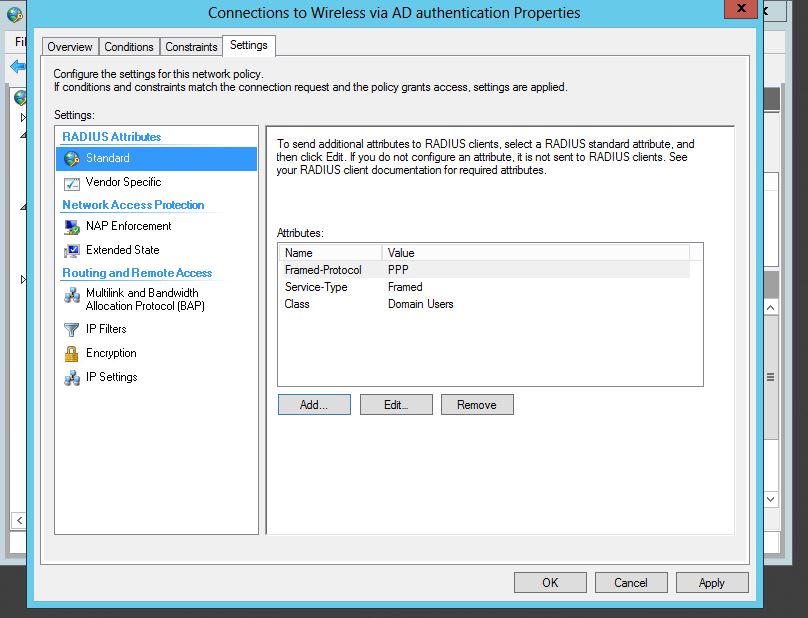
Press OK, and now we have the variable added, you can confirm as seen below:
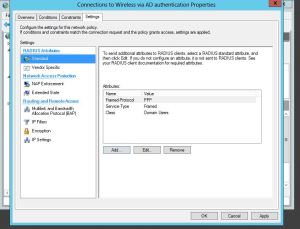
class-4

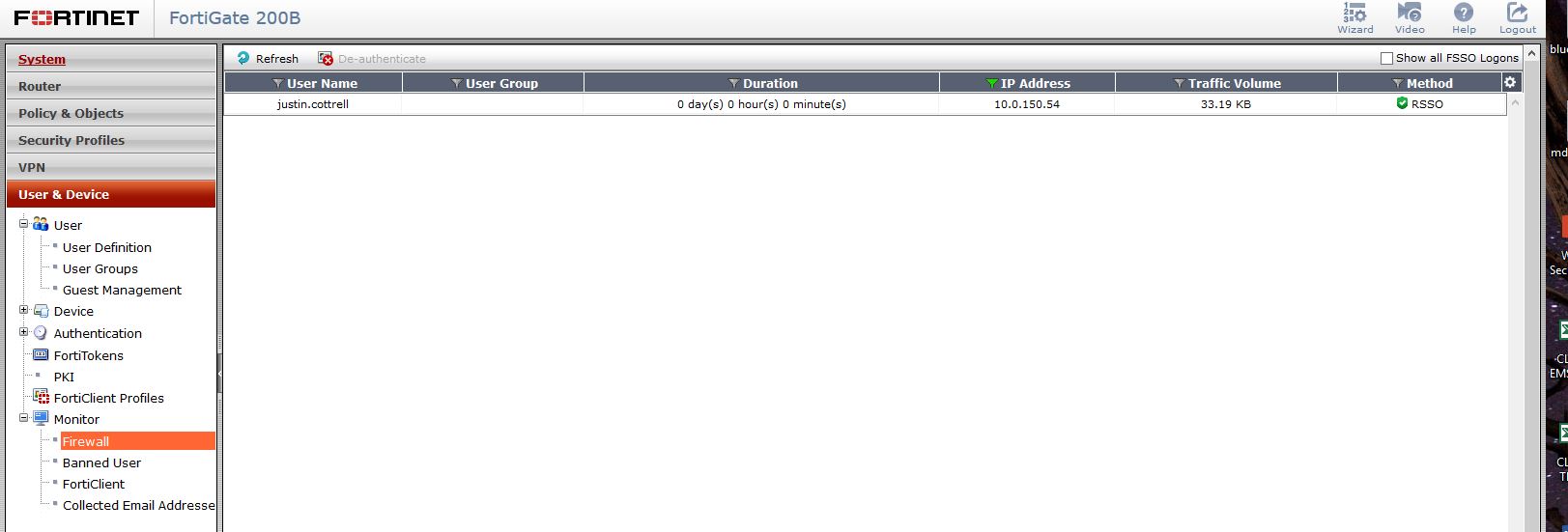
Great, now we have the hard part done. Now, have some users log in to wireless, and see if you get correct RSSO users found in the firewall. you can check this my navigating in the firewall to User&Device – Monitor – Firewall
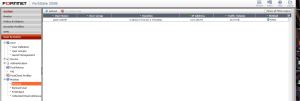
No-group

Awesome, it found my username, and my IP, but my group is blank, how can you apply a policy to user if they have no group? The answer – is just the same as the FSSO. If you do not have a firewall policy that references the Radius group that you created then no group, no filtering, nothing. So you need to create a new firewall policy and select the RSSO group you created as the source group. In my example the group is called Radius Domain Users.
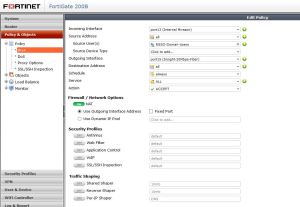
firewall-rss-policy-creation

To show a policy example check out below: My domain FSSO is above my RSSO policy.

firewall-rss-policy

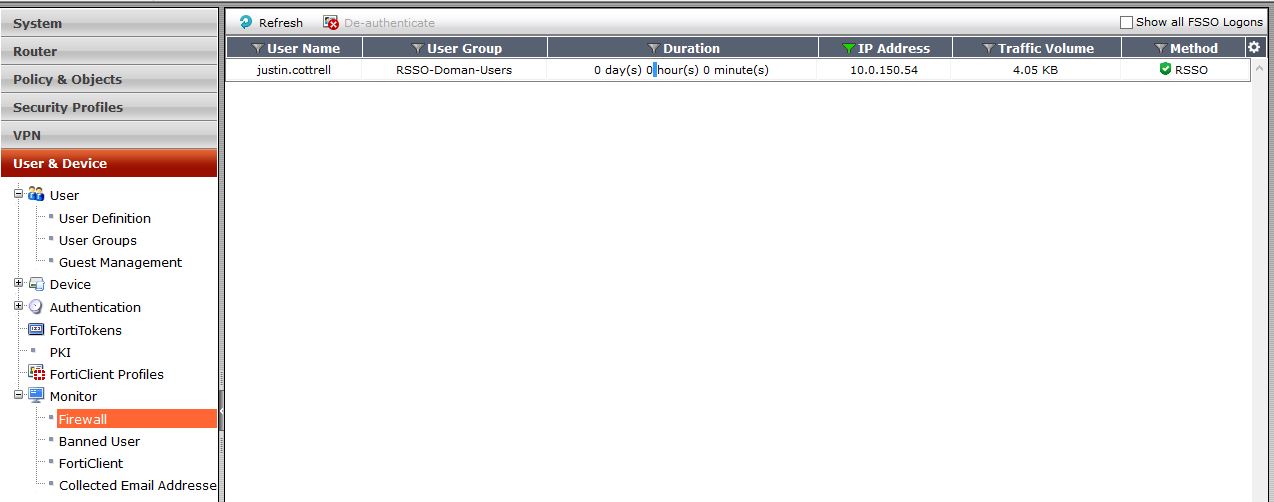
Now that that is created and enabled, lets check the user monitoring – BAM! there it is, my group included.
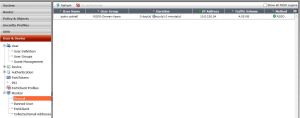
Radius-user

Using RSSO and 802.1x is awesome, it allows you to kinda use a single pane of glass aspect and have Firewall, and Wireless be able to know who the user is just my them logging into the wireless network. Also, using 802.1x for wireless authentication and Key management is very secure. Having users known that are on wireless no matter what device can really be beneficial in reporting, either through Forticloud of FAZ.

Creating a Fortigate Virtual IP – External to internal Port Forwarding

Hello, I noticed one thing I have never created a blog entry on creating a Virtual IP to allow access from the internet into a local server. This entry is for  a VIP and Policy creation on firmware 5.2> . Remember all the best documentation is located at docs.fortinet.com

So what is a VIP, a Virtual IP is one way to allow external traffic going to a Public address to be forwarded in to a Local server with a Private address. Basically, its a NAT object consisting of external IP and port and  Internal IP and port. Before this firewall will allow traffic to access the NAT object (VIP) it needs to have a Firewall policy allowing the destined traffic to the VIP.

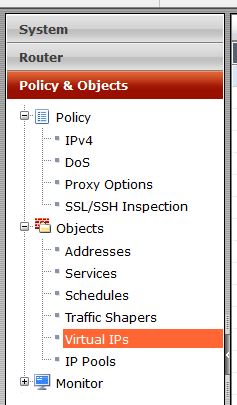
So, lets create a VIP. First lets navigate to Policy & Objects, Objects, and Virtual IPs. Lets create a new object.

location

Now, lets input the information needed to have external connections reach our internal network. In this example my outside web server listening address is 2.2.2.1 (my fake public IP) , my internal web server at 172.16.1.10 and my answering interface (the interface accepting connections) is WAN1 (QXnet). So, start out naming the VIP something that will have meaning to you. Then select the incoming interface, and apply the correct IP information. You will then have the option to do a port forward (1 port or a range forwarded into the server), or a 1-1 nat, where all ports are forwarded. If you do a Port Forward, select the protocol, and then set the ports.

Vip-Creation

In this example I am allowing port 80 on my public IP to be forwarded to port 80 on my private server.

Great, we have created the VIP object. But, as of now no traffic will be allowed to go to the private server. We have to add a Firewall policy to allow that traffic to the VIP.

Lets navigate to Policy & Objects, Policy, IPV4 then create a new policy.

Below shows the settings. The settings read like this : Incoming Interface – This would be where traffic is coming from, in this case the WAN1 interface. Source address: this would be the actual address its coming from, in this case it could be anyone on the internet, so I will select all. Source users, and devices can be left blank. Outgoing interface: this is were the traffic is going, in this case its going to my server located on my LAN interface. Destination address, this is the tricky part. The destination address will be the VIP you created. In 5.2 notice the ICON. Its different then normal address objects, thus specifying, if your name didn’t, that this is a VIP.  You then have to specify the server you want to allow in, I am creating the VIP to allow HTTP into the network, so I will only specify HTTP traffic to be allowed in.

For traffic coming into the firewall we do not need to NAT this traffic, please turn this off. In 5.2> it is on by default when you create a policy.

If you require any UTM features to be on, this is the time.

Policy

That’s It! Fortinet makes it very easy to create these VIPs.

If you are not sure if your VIP is working, there are many ways to check/troubleshoot. One way would be to test it, does your server answer? You can also do an online port scan using any many tools online. you can also check the hit counts on the policy (See below). The hit counter should be there by default, but if not add it in by right clicking on the tool bar and selecting Count as one of your columns. I have used the hit counter many times to troubleshoot my VIPs not working. For example, if I try to access my server VIA the public IP, and I get hit on my policy – I know that everything is correct on my VIP. I will then make sure my ports/server settings are correct. You could also do more advanced troubleshooting like debugging the traffic, or do a packet capture on the firewall.

hit-count

Creating a Fortianalyzer to Fortigate IPSEC Secure connection

The Fortianalyzer is a great product. It can give very deep analysis of exactly what is going through the network and allow you to create/schedule reports to show this data. You also have very quick detailed monitoring at hand with the Fortiview. By default the Fortigates connect to the FAZ  via SSL, all logs are encrypted. Recently, and I am not sure what the issue is, I have been having issues with certain FGTs connecting to the FAZ via SSL (I think its a cert issue..but still checking). So, we have a different option, to use IPSEC to create a tunnel and allow everything to be encrypted that way. This works great.

What we need to do

FAZ: add the device manually in the FAZ, enable “Security”, change the Local ID, Set the PSK.

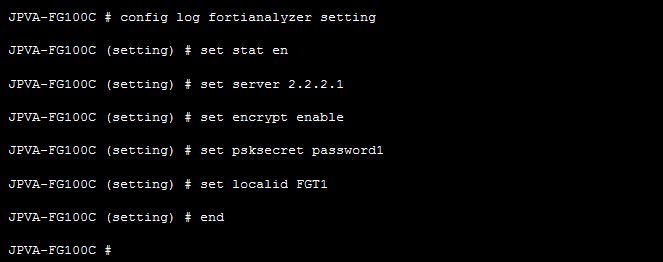
FGT: Go in through CLI, disable SSL encryption, enable IPSEC, set the PSK.

So lets go to step one – adding the the device in the FAZ.

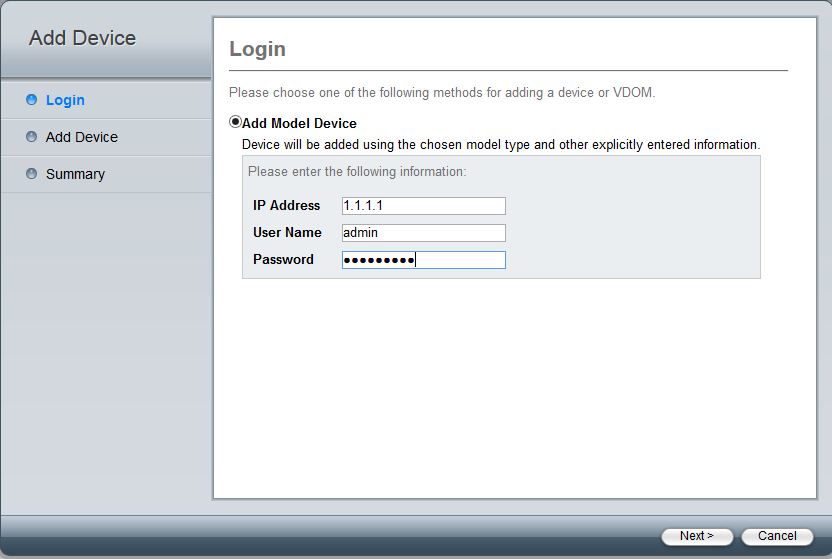
Log into the device, and select whatever Adom you want to add the FGT into. Then select to add a device, once this pops up fill in the needed info, you will need an admin account.

device-add

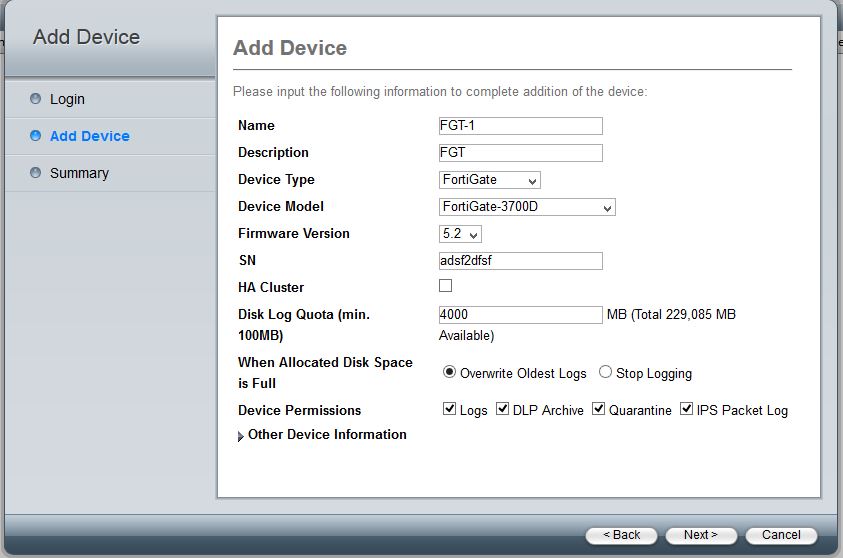
Select “Next” and fill in the needed info, you will need the S/N for this.

device-add2

Once that is added you will be able to edit the device. Right click on the device name and select Edit.

From here you will need to enable IPSEC by checking “Secure Connection” and change the PSK. Notice Local ID this is what will identify the FGT. By default its the S/N but you can change it to anything. In this case I am using FGT1.

Device-add-3

Now you should see something like this, notice that “Secure connection” is red.

Device-status

Great, now its time for the device settings. I am going to do this through the CLI, its the only way to set the PSK as far as I know.

The commands are listed below. One thing to note is that once you select “Encrypt” you disable SSL and enable IPSEC.

fgt-1

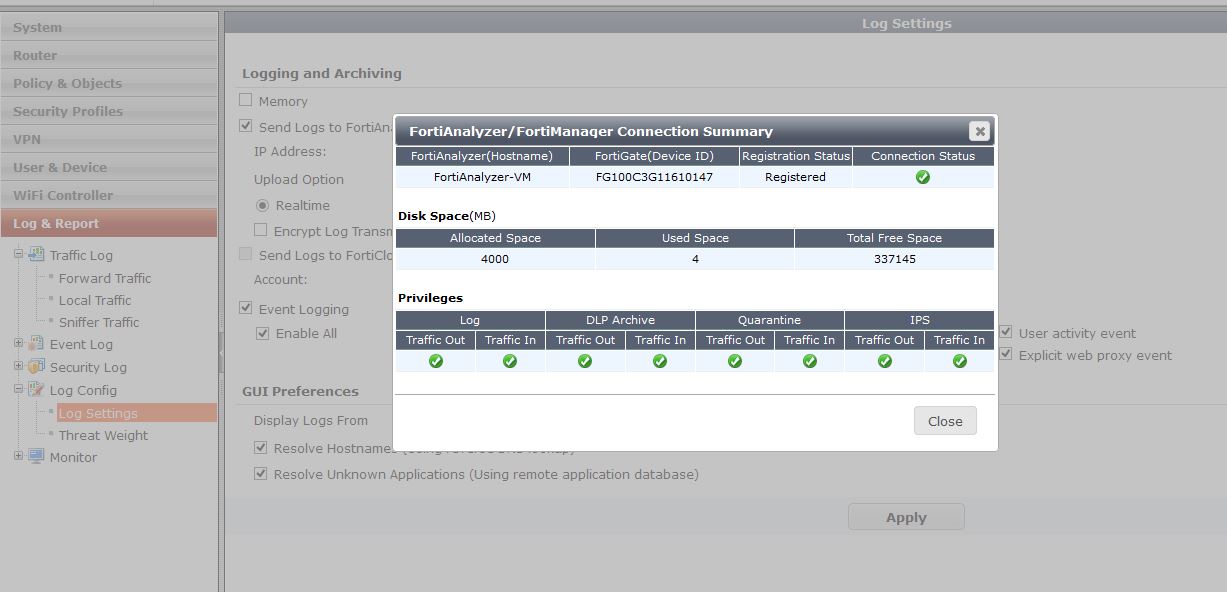
After all the commands are entered, you should be able to go to Log-Log Config-and test the connection to the FAZ. It should pop up that everything is working as listed below:
testing-1

Lets check on the FAZ, to make sure everything looks correct.
faz-status

Ok, this all looks great. That’s it, now we are using IPSEC to encrypt the logs. Its a good alternative to SSL if you find your self in the situation that the FGTs will not connect do to cert issues.

Fortigate changing Switch/Interface mode

The entry is written for a 90d, but will work the same for a 60d or 80d, even some C models.

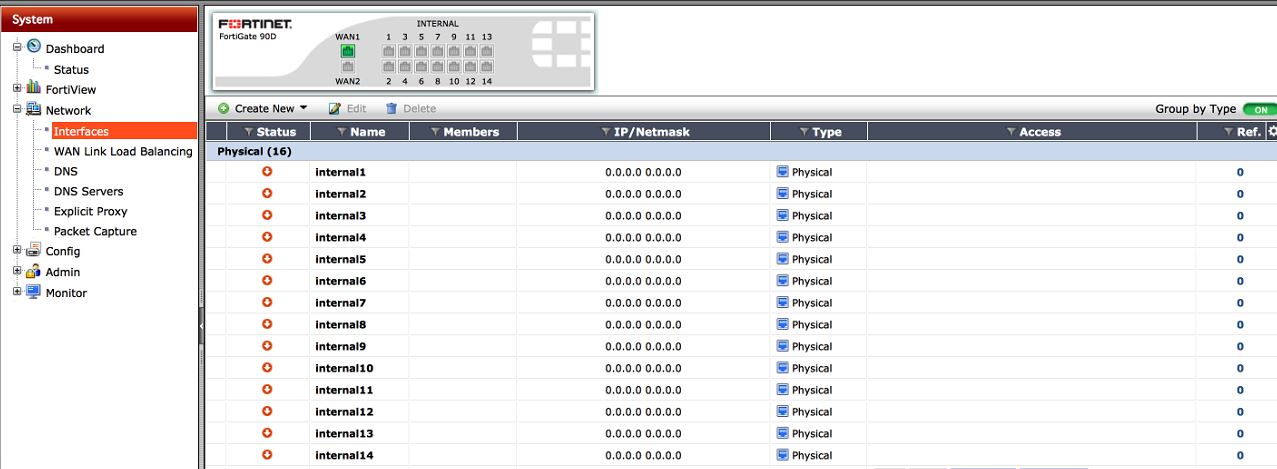
By default the Fortigate is in “Switch mode” you will only be able to see the “internal” switch, and cannot add or remove interfaces from this switch. In this mode you can add more switches, but not remove the current ports.

In the next few parts we will change the switch mode to interface, and be able to add/remove ports and switches.

Before doing anything to the Firewall make a backup. When we actually change the interface mode it will delete the IP address on the internal interface. So connect to a WAN or DMZ port and use the GUI, or make sure to be consoled into the firewall VIA the serial port (console).

First we need to remove any reference to the “internal” switch itself. If you have a default config then there will be only two. The internal->WAN policy, and the DHCP server under the “Internal” interface.

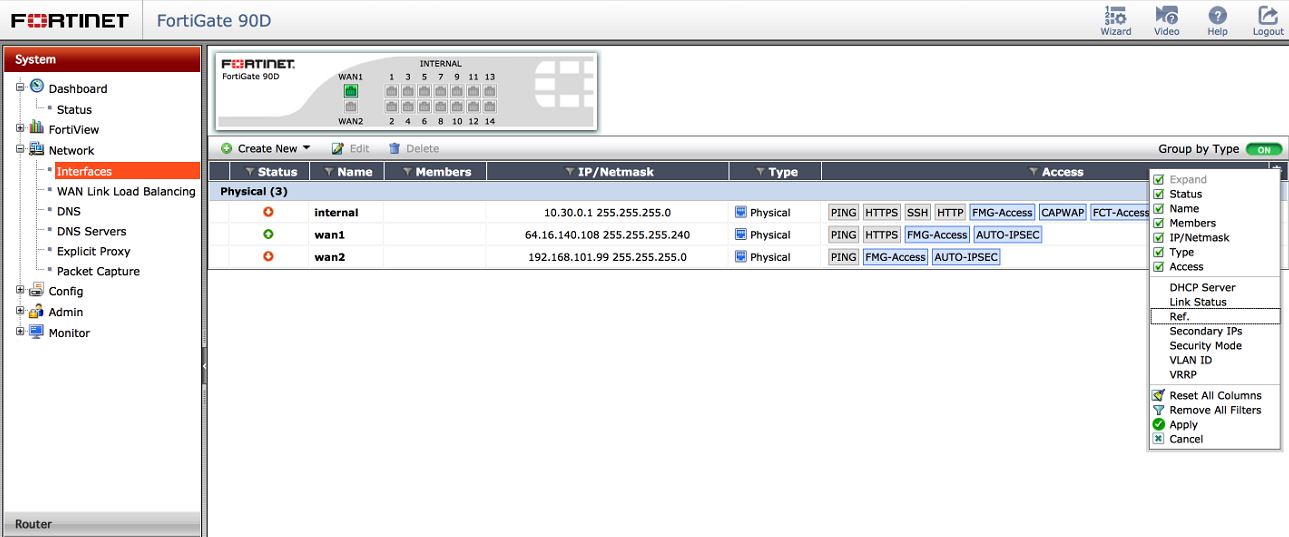
You can see all references attached to the interface by navigating to System-Network-Interfaces and modifying the settings to show the Reference tab.

int refJPG

once those references show up, you can click on the number and navigate to the exact location of that reference. For example, let say you added an address object a long time ago and added the interface. Bingo – shows you exactly where.

After removing all the references by deleting them (yes, deleting.. so make a backup!) you should now see a 0 balance in the references. We can now change the interface mode in CLI.

You can either do this through a terminal such as putty, or through the GUI CLI app. Remember after changing the interface mode, it will delete your IP address on the internal network. So do this VIA Console, or go to the GUI on the WAN or DMZ interface.

interface mode

Commands are:

config system global

set internal-switch-mode interface

end

Then click y to reboot the firewall, when it comes back it will be in interface mode.

Once it is back up, login VIA the GUI on either the WAN1, WAN2, or DMZ ports. Then you should see something like this:

broke-interfaces

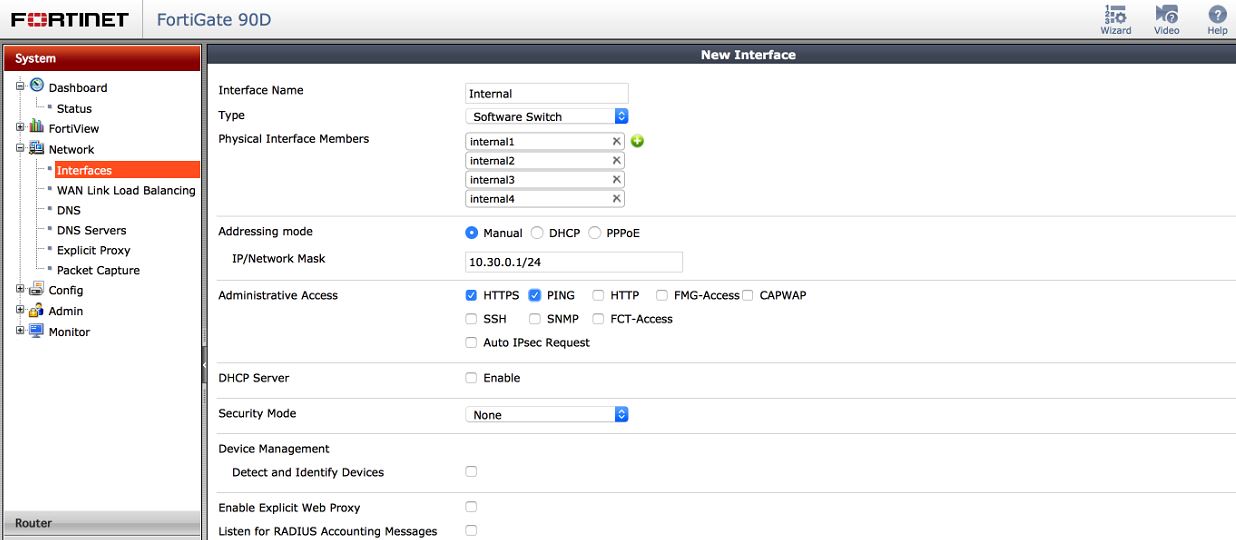
Now, under this page System-Network-Interfaces  lets click the “Create” Button. From here you can create your switch. Select the type as Software or hardware switch depending on your model. You can also add your ports, set the name of the interface and the IP.

internal-switch

Once you press OK, you should see your new interface listed under system-network-interface as seen below

show-switch

Recreate all of your policies, to allow access to and from and everything should work great. If you have any questions or I failed to explain anything please let me know.

Fortigate 5.2+ SSL VPN Address

You can use a different IP address to answer for the SSL VPN.

Lets say that your interface IP (The default IP address that is used with the SSL VPN) already has HTTPS (443) forwarded in to a internal server, and you really want the SSL VPN port to be 443. You have an option.

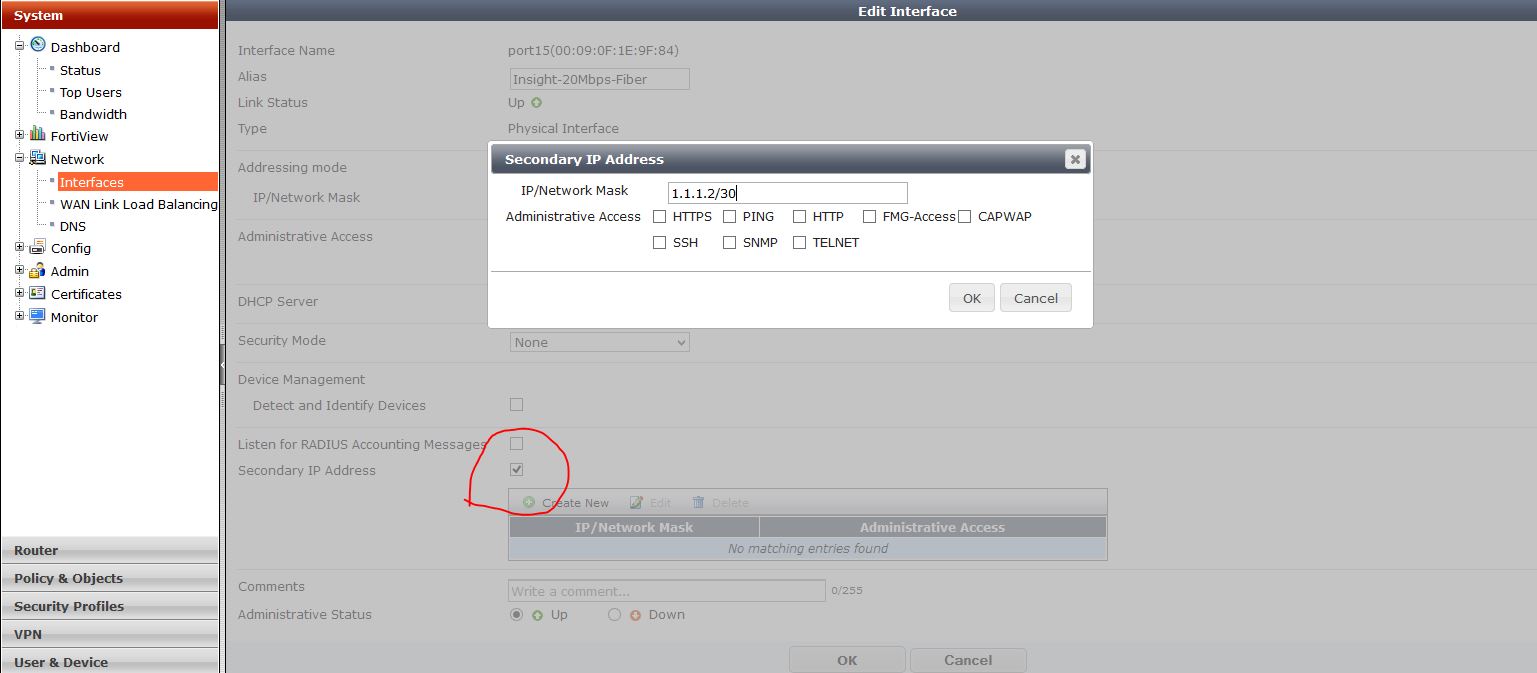
You can add a secondary IP  address under the WAN interface that does not have a reservation already for 443. Then use this IP address for the SSL VPN.

To do so:

secondary-ip

Add your secondary IP address – Note this has to be a public address, given to you by your ISP..

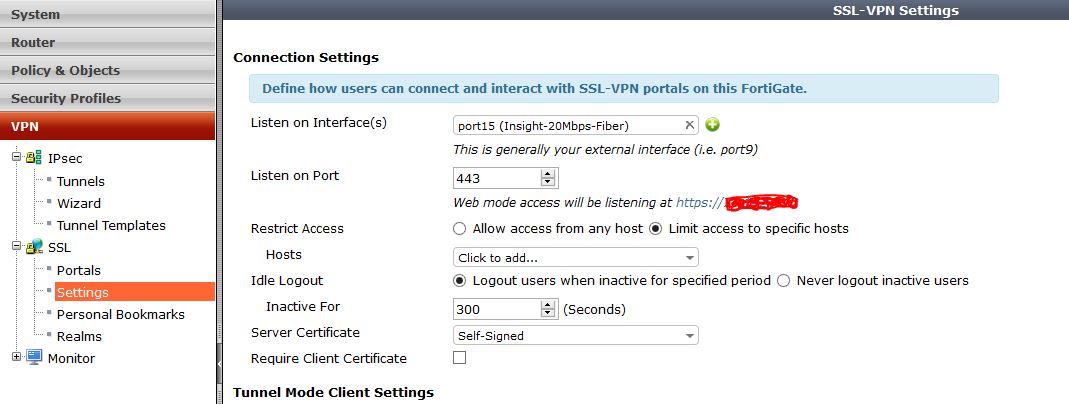
Then go into the VPN settings and modify the port for what you want. Notice that the address it says will work is still the primary IP, even though the secondary will work just fine.

ssl-settings-second

Fortigate – How to create a default route with a dynamic connection.

Recently I needed to make sure select traffic would flow over a certain ISP link. Unfortunately that link had a dynamic address, which meant the address and gateway of that route could change anytime. Also I wanted to have my primary ISP failover to this link if needed.

To accomplish these things I needed to have both default routes in my routing table at the same time. This means that they both have the same distance, but different priorities. One way to accomplish this is to configure a static default route, and just change the priority of the link , but how can you do this when you do not know the gateway?

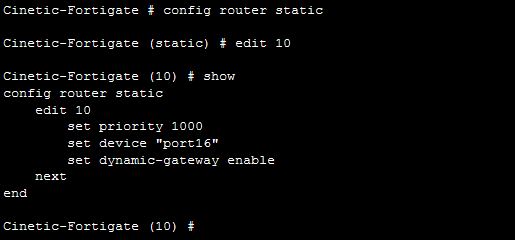
You can create a dynamic-gateway static route in the Fortigate.

dynamic-route

Through CLI you can create a dynamic gateway route using the above syntax.  Remember, the higher the priority the less preferable the route.

You can also create basically the same thing under the interface of the WAN link by using the distance, and priority interface commands listed below:

cin-interface

So now if we check our route monitor:

cin-routes

We have both default routes, and can successfully use a policy based route to push the needed traffic out.

How to get Fortigate interface statistics such as errors/discards

There are two really good ways to pull errors/discards and speed/duplex status on FGT. One method is running the CLI command:

diag hardware deviceinfo nic X – Where X would be the port, for example wan1

Results:

Glass-B # dia hardware deviceinfo nic wan1
Description :FortiASIC NP6LITE Adapter
Driver Name :FortiASIC NP6LITE Driver
Board :100EF
lif id :2
lif oid :66
netdev oid :66
Current_HWaddr 00:09:0f:09:00:15
Permanent_HWaddr 70:4c:a5:1c:97:ee

========== Link Status ==========

Admin :up
netdev status :up
autonego_setting:1
link_setting :1
speed_setting :10
duplex_setting :0
Speed :1000
Duplex :Full
link_status :Up

============ Counters ===========

Rx Pkts :10168446
Rx Bytes :11555061952
Tx Pkts :7135911
Tx Bytes :1372048635
Host Rx Pkts :9869349
Host Rx Bytes :11069429016
Host Tx Pkts :6928881
Host Tx Bytes :1304248922
Host Tx dropped :0

On 1500D’s and other large devices the command is a little different. See the bottom.

on 1500D’s it seems the command changes a little bit to : “diag hardware nic port40“— this was the results from a 1500D that is running 10 gig. The output is at the bottom.

Second way

I started doing some research and found that there was a command that would drop you down to a very limited Linux shell. There are a few commands that are support such as “ifconfig”. This blew me away. I have been wondering if there was a command like this for a long time.

Log in through CLI, and run ” fnsysctl <command>” for example “fnsysctl ls”.

So to get the interface stats, I would just run: “fnsysctl ifconfig port16” or whatever port you want to look at.

fnsysctl

And there we go. I have search for some other ways to get this, and have not found anything. If someone finds something better please pass it along.


Output from 1500D

FGT# get hardware nic port40
Description :FortiASIC NP6 Adapter
Driver Name :FortiASIC Unified NPU Driver
Name :np6_1
PCI Slot :0000:0d:00.0
irq :40
Board :FGT1500D
SN :FG1K5D3I15800578
Major ID :3
Minor ID :0
lif id :19
lif oid :171
netdev oid :171
netdev flags :1303
Current_HWaddr 00:09:0f:09:00:24
Permanent_HWaddr 08:5b:0e:e3:45:1f
phy name :port40
bank_id :3
phy_addr :0x1f
lane :3
flags :804006
sw_port :8
sw_np_port :12
vid_phy[6] :[0x7f][0x29][0x00][0x00][0x00][0x00]
vid_fwd[6] :[0x7e][0x00][0x00][0x00][0x00][0x00]
oid_fwd[6] :[0xd9][0x00][0x00][0x00][0x00][0x00]
========== Link Status ==========
Admin :up
netdev status :up
autonego_setting:0
link_setting :1
link_speed :10000
link_duplex :1
Speed :10000
Duplex :Full
link_status :Up
rx_link_status :0
int_phy_link :0
local_fault :0
local_warning :0
remote_fault :0
============ Counters ===========
rx_error :0
rx_crc_error :0
rx_carrier :0
rx_oversize :0
rx_undersize :0
tx_collision :0
Rx Pkts :109497620
Rx Bytes :150634406914
Tx Pkts :74293345
Tx Bytes :42164760114
Host Rx Pkts :30734166
Host Rx Bytes :38611688664
Host Rx dropped :0
Host Tx Pkts :41309687
Host Tx Bytes :20219939267
Host Tx dropped :46
sw_rx_pkts :109497628
sw_rx_bytes :150634408123
sw_tx_pkts :74293361
sw_tx_bytes :42164761592
sw_rx_mc_pkts :301
sw_rx_bc_pkts :970
sw_in_drop_pkts :0
sw_out_drop_pkts:0
sw_np_rx_pkts :92470644
sw_np_rx_bytes :80482907648
sw_np_tx_pkts :143654631
sw_np_tx_bytes :183360431151
sw_np_rx_mc_pkts:136
sw_np_rx_bc_pkts:502
sw_np_in_drop_pkts:5708
sw_np_out_drop_pkts:0


Fortigate – Restart SSL VPN Process

*Note – Just did this on a 300D running 5.6.2 code. CPU was running at 100% and the SSL VPN process was the culprit. The connection status would stall at 40%, then quit at 75%. Killing the process with the notes below worked great. Also, I am pretty sure that their is a reference in release notes of 5.6.2 about CPU going crazy due to a bug.

If the Mem goes to high, and the device drops to conserv mode. The SSL VPN may stop working correctly, or at all.

A quick reboot of the firewall will fix this issue, but restarting the VPN process will also fix it (given the mem dropped). You can also restart any process with these commands.

To restart the process:

get system performance top – to get the process ID (PID) of the SSL VPN

get-pid

Looks like the PID of sslvpnd – 81

Next, we will kill the process with the kill command and use the level 11 – which restarts the process.

the command: dia sys kill <level> <PID>

dia sys kill 11 81

If you do the get sys per top command again, you will notice that the sslvpnd process now has a different PID.

Fortigate and Ruckus AP remote registration issues across a IPSEC VPN

Recently I and others have had an issue when using interface based VPNs on Fortigate, and remote Ruckus APs are on the other side of the VPN. For some reason these APs cannot register with the ZD – sometimes they never even show up. I can log into the remote APs, SSH, Web, Ping everything works they will just not register with the ZD.

When I see this the most the client has just updated to Fortinet 5.2 firmware, and is using Interface based VPNs instead of policy based.

Now back to the main goal of the entry – If you are using a interface based VPN with Fortinet specifically you might see your APs come up for a while, then drop. Another symptom I have seen is that you have your DHCP options, and DNS record  set for the Zonedirector but the APs never show up.  The underlying issue is that the interface based VPN will drop sometimes – the Fortigate may not even report the drop. During this time the the Logical VPN interface is no longer attached to the Fortigate, that means the route you set to push traffic over it to the remote subnet no longer exists. So a UDP session is opened to the internet – since there is no other place to send the traffic to. Once that happens the UDP stays active – Even though it should timeout.

So to fix the issue, Add a service for “Ruckus services” and add UDP and TCP ports 12223, and UDP and TCP port 12222. Then create a policy in the firewall to block traffic going to the WAN on those ports. This will make sure that remote sessions are never created to the internet interface. So if the tunnel drops you will not have to worry about this. You could also just create an address object for your remote subnet and create a policy blocking any traffic matching that object going to the WAN interface.

ruckus-service

Here is the policy to block the traffic from leaving the WAN interface

Ruckus-block

Note – Make sure this policy is above any traffic that would be go from internal – to VPN.

After the policy is created to blog those ports – lets clear the sessions in the firewall. We can do this using the CLI command in the Fortigate:

Dia system session clear

So how did we figure this out? If you do a packet capture on the Fortigate matching the ZD or AP ip addresses, you will see registration attempts trying to go through the WAN interface, even though the VPN is up. Since UDP is connectionless, it never expects a response on the session, so it stays up. If you see the session going through your WAN interface, and your VPN is up, just kill that session. You will see your AP come up very quickly, but the same issue will happen if you don’t make sure the session is never created.

This has fixed the issue for a few clients having this problem.