Fortigate HTTPS inspection Certificate error fixes

*Note – Most of these issues have been fixed in 5.2. By default now, if you select https inspection – Certificate inspection you will just get a blank page when you go to a https that is not allowed.

The Fortigate Web filter is amazing! I think it stands up to the best web filters out there.

But, like all webfilters SSL can be a bit tricky. Fortigate offers its own SSL Certifcate “Fortigate-CA-Proxy” to the client when it does a few things:

1. Deep packet inspection (imagine a man in the middle attack). This way the Fortigate sees all traffic that comes in the session even if it was encrypted.

2. When it sends its replacement message (Blocked) to the client.

Some problems come up with this. The cert has to be trusted by clients, this can be easily done if you have a internal CA, or you could create a Windows group policy to push the certificate into their trusted store. I know you might ask, what if I get a signed cert for this? The certificate is a CA-True certificate. That basically means you would have to get a certificate from a trusted publisher that says you are a public CA. I would say most CA’s would not give us one. But what if you want SSL inspection for Guest clients but don’t want them to see the cert error? The answer lies below friends. Something to remember is you have to have SSL inspection enabled on the firewall policy to get HTTPS inspection to work.

To have the Fortigate block the website without giving an error there are a few things that need to be done:

1. Select the webfilter to use https-url-scan to only look at the URL, not to use deep scanning

2. set the Fortigate to not respond with a replacement message. Remember it responds with a HTTPS blocked page – so  therefore you see the HTTPS cert.

As of Patch 7 this is a CLI command.

To enable HTTPS-url-scan which looks that the URL not the traffic going through:

config webfilter profile

edit default (or your profile name)

set options https-url-scan

end

To disable the HTTPS replacement message:

config webfilter profile

edit default (or your profile name)

set https-replacemsg disable

end

To give an example:

Lets say I block the category “social networking” and go to http://facebook.com it will be blocked. If I go to https://facebook.com it will show a blank screen – no error message, but will not work. Before enabling these commands I would see the error message, then after accepting the cert I would see the block page.

Note* there might be a way to have the replacement message be http, instead of https. I am looking into this.


Time based Policy-map for traffic policing

Recently I was tasked to resolve a problem where a video stream on Saturday and Sunday would get very choppy. This video stream is for a church and as you would expect needs to be perfect. There are multiple remote sites each connected to an MPLS back to the core site which is where the video stream originates. Each site has a 100Mb MPLS link back to the core site.

We wanted to make sure that on Saturday and Sunday that normal traffic (web, file shares) would be capped at around half the useable bandwidth, and the other half was for the stream. This is much more bandwidth than what the stream needs, but we want to make sure its plenty.

So, what we did was implement time based ACLs for both the traffic we want to prioritize, and another ACL for all default traffic that we want to police. We used a ‘any-any’ ACL instead of the class-default because we have to make it time based.

Some of the things to note – the Burst rate really mattered here. I followed the formula from Cisco RATE-SPEED/8 * 1.5. Using this formula solved my issues and things flowed exactly the way I wanted them to.

To test I changed the time on the router to look like Saturday, and then used Iperf to push traffic.

The system clock on the router has to be correct, else everything can be very screwed up. You might be saying why did you use a policer instead of a shaper? good question. I would have used a shaper if my 3750’s supported it. A shaper would have been a better solution here.

Steps

– Create Time-range

– Create ACLs using time range

– create class maps

– create policy maps

– apply policy-map to interface


First to create the time-range to match the times we wanted we used the following commands:

config t

time-range Weekend-Service

periodic Saturday 13:00 to Sunday 15:00

exit

Next I created the ACL to match the priority traffic and default traffic

ip access-list ext Priority-traffic

10 permit ip host 10.0.0.1 any time-range Weekend-Service

exit

ip access-list ext Default-Traffic

10 permit ip any any time-range Weekend-Service

exit

Then I created the class and policy map, and attached it to the interface.

Class-map match any Priority-Traffic
match access-group Priority-Traffic
exit

class-map match-any Default-Traffic
match access-group Default-Traffic
exit

policy-map Stream
class Priority-Traffic
set ip dscp ef
exit

class Default-Traffic
police 50000000 937500
set ip dscp default
exit

int gig 1/0
policy-map input stream
exit

There are many commands to test the status, one command is “show policy-map interface”

Linux network interface perference

Sometimes you have multiple nics on a Linux host and need to have one be a backup for anything other than its own subnet. Lets say both these nics have default routes and we need to go out of eth0 by default. There are multiple ways to do this.

One was is to modify the interface config and add a Metric. A lower metric is more preferable.

The command would be:

vi /etc/networking/interfaces

or

vi /etc/networking/eth0

then add

METRIC 1 (0 is highest, 1 would make it very prefreable)

save the file, then restart networking:

/etc/init.d/network restart

Another way is to use the command ifmetric command to set the metric of the route.

ifmetric INTERFACE [METRIC]

Using the ifmetric I do belive does not set it permenatly.

HP vs Cisco Vlan trunking

Whenever I talk to networking people about integrating or replacing Cisco switches with HP they always talk about how difficult it was to get them to pass vlan info. This is because the terminology is totally different between the two.

In the Cisco world a “Trunk” port will pass all vlan tags by default. What does this mean? It means that the port can accept/pass IP packets with different Vlan tags. Basically the trunk port is a member of every vlan, and therefore will pass traffic from every vlan its a member of. In HP the word Trunk means link aggregation example is LACP. Basically taking 2 or more links and combining them. HP uses the phrase “tagged”.

So what is a VLAN tag?

Image

The “Vlan ID” is a 12-bit value in the IP header of the Ethernet frame that specifies which vlan that frame belongs, and thus virtually separates traffic.

So to configure a port as a trunk in Cisco the command is “switchport mode trunk”. This will allow the port to access every vlan , and understand/pass the frames with any tag.

In HP world you would “tag” multiple vlans on a single port. The “tag” command basically means that the port can pass/understand frames in those “tagged” vlans on that port. So lets say we have 2 vlans, and we want a switch to pass frames on both vlans to another port, then we would configure the port as tagged in both Vlans. Commands would be:

int 24

tagged vlan 120,140

Now that port will accept tags from both vlans and pass them along.


Access ports or Untagged

An access port in Cisco is a port who’s traffic will be tagged by the switch for the vlan the port is set to access. For example if the command on the port is “Switchport access vlan 120” then all untagged (default) traffic will be tagged for vlan 120 by the switch. This is done because the host itself is not tagging frames, but sending everything untagged.

In HP this access port would be “untagged”. This means that the traffic leaving the port will come in untagged, but will be tagged with vlan X by the switch. So the command – “untagged vlan 120” means all traffic will be in vlan 120.

Commands:

Trunk ports

Trunk (cisco)

int gig 1/0/24

switchport mode trunk

exit

Trunk (HP)

int 24

tagged 120,140

exit

Access ports (this port is in this vlan)

Access (cisco)

int gig 1/0/24

switchport mode access

switchport access vlan 120

Access (HP)

int 24

untagged 120


Fortigate interface Speed/duplex

Hard coding speed and duplex settings on a device is very important. Some times it is essential to hard code your settings to work with and ISP or neighboring device. To change the speed/duplex settings manually you will need to use a CLI command. The default setting is to Auto Negotiate, but as we all know sometimes on the ISP or local side it can negotiate to half duplex, or never correctly negotiate.

Check Speed/Duplex

How check speed and duplex of the interface:

Fortinet now has the ability to see speed/duplex by hovering over the interfaces in the GUI. This option became available in MR5 patch 4 i think.

Image

To check this through the CLI there are a few ways to accomplish this. two command that can do this are:

get system interface physical

Image

This command shows the IP, status, and speed/duplex.

The next command is:

get hardware nic X

Image

This command gives you much more info, such as errors and drops.


Setting speed/duplex

To set the Speed and Duplex of the interface to 1 gig full duplex use the cli commands:

Config system interface

edit X

set speed 1000full

end

Image

Thats, it! Notice that get system hardware nic gives you all kinds of stats about that interface.

Cisco ACL Logging: log-input

Using ACL logging can be a very useful tool not only to get info about whats going on, but also for troubleshooting. One way to get much more robust logging is to use the log-input at the end of the ACE.

The log-input command shows the normal things such as source ip/port and destination ip/port but will also so the ingress interface and mac address of the source. Very cool! The following is and example of the output:

*May  1 22:33:38.799: %SEC-6-IPACCESSLOGP: list ACL-IPv4-E0/0-IN permitted
   tcp 192.168.1.3(1025) (Ethernet0/0 000e.9b5a.9839) -> 192.168.2.1(22), 1 packet 
*May  1 22:39:15.075: %SEC-6-IPACCESSLOGP: list ACL-IPv4-E0/0-IN permitted
   tcp 192.168.1.3(1025) (Ethernet0/0 000e.9b5a.9839) -> 192.168.2.1(22), 9 packets

Fortinet BGP local Preference to influence outbound routing

Fortinet like all vendors supports BGP and has many ways to configure it. In this case almost all settings are configured VIA the CLI. In this post I will show how to configure the Local preference attribute to influence what routes a device will take to leave the network. For example, if you have two ISPs, and we use one for primary, and the second for a backup then we would want to change the local preference to make ISP 1 more a better choice.

Changing the local preference of routes from the default 100, to a higher value makes those routes the best choice when leaving the network. Also you can use a prefix-list to change just the preference of one or more routes, you do not have to do all routes advertised by the neighbor.

Steps needed are:

– Get BGP instance configured

– Configure neighbors

– Create route map

– assign preference in Route map

– Apply route map to neighbor

– Clear BGP routes, and check new preferences.


After you get BGP configured VIA CLI or GUI we can start with creating the route map.

Image

You can name the Route map whatever you like, for example if you have two ISPs, you might say ISP-1-Local-Pref. Then modify the rule you want, and change the local preference. Remember the higher the local preference the more preferred.

Command:

config router route-map

edit name

config rule

edit 10

set local-preference X

end

Next we can apply the route-map to the neighbor we want to set preference on.

Image

Once that is configured, we can check the perfernce of the routes with the command:

get router info bgp networks

You might notice that the preference has not changed. This is because we will need to clear the routes first. We can do this with a few different commands:

exe router clear bgp ip x.x.x.x out

This will clear all routes from this neighbor. If this is a live production network, it would be better to run the command:

exe router clear bgp ip x.x.x.x soft out

A soft reset uses stored prefix information to reconfigure and activate BGP routing tables without tearing down existing peering sessions. Soft reconfiguration uses stored update information, at the cost of additional memory for storing the updates, to allow you to apply new BGP policy without disrupting the network. Soft reconfiguration can be configured for inbound or outbound sessions.

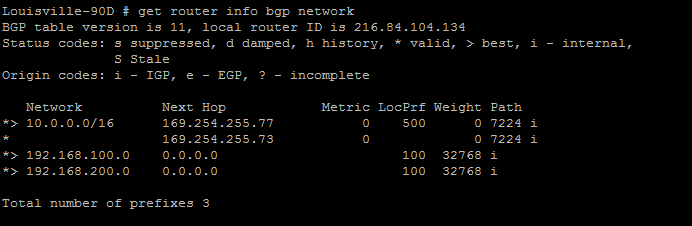
Thats it! now we should see the new preference associated with our routes:

Image

Notice the 500 instead of the default of 100. Everything is working, now all my routes going to the 10.0.0.0/16 network will take the 169.254.255.77 neighbor. Also notice the > symbol. This means it is the best route, and therefore the one put into the routing table. Other routes will not show up in the GUI routing table.

Fortigate BGP AS Path prepending

Docs.fortinet.com is always the best place to get any Fortinet info.

Fortinet like most firewall vendors supports almost all Dynamic routing protocols. BGP is one, the GUI has simple to setup BGP options, but many do not exist in CLI, which might be for the best. In this post I will show how to create a Route-map and prepend the AS path influence ISP/neighbor routing.

First lets talk about why you would want to prepend an AS path. You would want to do this to influence how neighbors get to your routes. For example, if you had two ISPs, or neighbors and wanted to broadcast your routes to both neighbors, but wanted everyone to take neighbor 1 to get to your router, with a backup of Neighbor 2 you could prepend the AS path and make this happen.

BGP is a very deep protocol and there are many different ways to influence routing. Routers will always take the shortest AS path to get to its destination so that is the preferred method for this.

Steps:

– Add BGP neighbors/networks – you can do this in GUI

– In CLI create route-map and use the commands to prepend YOUR AS path

– Assign Route-map to neighbor

– Clear BGP routes.


Create BGP in GUI.

This includes our AS number, the Neighbors and their AS numbers, and our networks we are advertising.

Image

Route-map Creation

Lets then drop to CLI and create our Route-map

Image

Commands:

config router route-map

config “Name”  —- create route map

edit rule X — from there you can set your Prepend

set set-aspath “x x x “

set action permit — I did not add this in the image. Routes will be blocked if this is not added.

end

Assigning Route-map

Now lets assign the route map to our neighbor. Since we are wanting to control how routing will get to us, we will apply this route map to outgoing routes.

Image

the command “set route-map-out” is what sets the route map on the outbound routes.

Last but not least, lets clear the IP routes so our prepend takes effect. You can do this through the command:

exe router clear bgp ip x.x.x.x out

This will clear all routes from this neighbor. If this is a live production network, it would be better to run the command:

exe router clear bgp ip x.x.x.x soft out

A soft reset uses stored prefix information to reconfigure and activate BGP routing tables without tearing down existing peering sessions. Soft reconfiguration uses stored update information, at the cost of additional memory for storing the updates, to allow you to apply new BGP policy without disrupting the network. Soft reconfiguration can be configured for inbound or outbound sessions.

Status

So now we need to take a look at the routes we are sending out to see if our AS has actually be altered. After resetting the peer it might take a minute or two before this shows up correctly.

Image

The command is:

get router info bgp neighbors x.x.x.x advertised-routes

That’s it!

Now we are controlling how devices will get to our networks in a Dual homed situation (two connections to ISPs). The querying devices will always take the lower AS path to get to its destination.

Fortigate TCP MSS

The maximum segment size (MSS) is the largest amount of data, specified in bytes, that a device can handle in a single non-fragmented piece. The MSS is essential in internet connections especially web surfing.

I once had a very crazy issue, where I could surf to almost all http websites, but many https sites such as USPS.com, hotmail.com would not work. The header would come up, look like its working and .. nothing. After a few packet captures I noticed that it was fragmenting some of the https packets coming in.  The crazy thing is many websites worked perfect.

To troubleshoot I put a Cisco PIX I had laying around into production to replace the Fortigate. Everything worked no problem.

So after many hours researching, I changed the TCP-MSS to 1360 and boom, no issues.  I asked Fortinet support why this was happening in contrast to the Cisco PIX. They said that the cisco will automatically change its settings (I have not researched) but the Fortinet will not. Go figure.


So if you hear problems like : Can’t get to HTTPS sites , USPS will not load, Browser loads certificate but site does not come up. Check these commands:

In MR4:

config system interface

edit port X

set tcp-mss-sender 1360

set tcp-mss-receiver 1360

end

MR5:

config system interface

edit port X

set tcp-mss 1350