Cisco Router with AT&T DSL internet connection

I would say no one will find this useful, but I have DSL at home .. I know. The following config is how to add a Cisco router use AT&T DSL. I have done this many times but not in the last two years or so, I had trouble finding good documentation on google for exactly what I needed to do, so I thought I would share.

The main parts of the config needed are creating a dialer interface, setting the authentication and user/pass. Then associating that dialer interface with your Physical Ethernet interface, and lastly configuring the default route.

First lets configure the Dialer Interface

config t

interface Dialer1
ip address negotiated
ip mtu 1492
ip nat outside
encapsulation ppp
ip tcp adjust-mss 1460
dialer pool 1
dialer-group 1
ppp authentication chap pap callin optional
ppp chap hostname username@att.net
ppp chap password password
ppp pap sent-username username@att.net password password

Now lets associate that with a real interface:

interface FastEthernet0/1
no ip address
duplex auto
speed auto
pppoe enable group global
pppoe-client dial-pool-number 1
!

Next lets set our default route and point it out of the Dialer interface

ip route 0.0.0.0 0.0.0.0 Dialer1

Given we have all our user/pass correct in a minute you should be able to do a “Show IP int br” and see the ip address passed to us by our ATT DSL Modem in bridge mode on the dialer interface.

Cisco ASA 9.1+ Static Nat example

Below shows how to configure Static nat for a web server or some kind of application running on a internal host. Basically we are port forwarding port 80 from our public IP of 1.1.1.2 to port 80 of our internal IP at 10.1.1.2. In this example Auto Nat will be used. You could also use Manual nat, I have written another blog entry on this.  This is way different than 8.2 and below. Here we create an object and then modify the object with the Static port forward we want. I

In this example my ASA outside IP is 1.1.1.1, and I want the web server to answer on 1.1.1.2.

object network 1.1.1.2
host 1.1.1.2
exit

object network 10.1.1.2
host 10.1.1.2
nat (inside,outside) static 1.1.1.2 service tcp 80 80

Somethings to note- We could name the objects anything, I just chose to use the actual IP address. For example, you could do the command ” object network Webserver-Outside” and use that name to reference the outside IP address.

Next, if I want to allow access to 10.1.1.2 from the outside world, I will need an ACL.

access-list Outside-In permit tcp any 10.1.1.2 eq 80

access-group Outside-In in interface outside

Notice the internal IP specified in the ACL – that is there on purpose. Instead of referencing the External IP  you now reference the internal.

What if the outside address answering for my web server is the outside IP of the ASA?

No problem, just have to modify that one NAT entry. Instead of the public NAT object we use the “interface” keyword.

object network 1.1.1.2
host 1.1.1.2
exit

object network 10.1.1.2
host 10.1.1.2
nat (inside,outside) static interface service tcp 80 80

Cisco – Combing T1 interfaces to increase speed

Recently I was working on a project that had a very remote office that could not get high speed connections to its location. So, they wanted to combine 4 T1s that were already in the building to boost throughput. I had done this exact thing with many different ISPs but never Verizon/MCI . They do things just a bit different, so this entry is about what is needed to combine these links on Verizon’s network.

The key here is to use a Multilink Frame relay interface. This is a Virtual interface that will combine the individual interfaces. Its very similar to a BVI in concept. As Cisco says it: The Multilink Frame Relay feature enables you to create a virtual interface called a bundle or bundle interface. The bundle interface serves as the Frame Relay data link and performs the same functions as a physical interface. 

At the bottom of this entry all the parts of the config are listed

First we needed to create the MFR interface itself. The number is up to you, I created 34 – feel free to change that.

interface MFR34
mtu 4470 — MTU Verizon said to set
no ip address
no ip redirects
encapsulation frame-relay IETF – Encapsulation used.
frame-relay multilink bid u11111-11
frame-relay lmi-type ansi
!

Next we need to create the sub interface , which will be used as our DLCI and our L3 interface.
interface MFR34.500 point-to-point
description multilink:MLFR:3xT1
bandwidth 6000
ip address x.x.x.x x.x.x.x
ip nat outside
snmp trap link-status
no cdp enable
no arp frame-relay
frame-relay interface-dlci 500 IETF
!

Then we will bond the interface to our MFR interface.

interface Serial0/0/0:0
mtu 4470
bandwidth 1536
no ip address
 encapsulation frame-relay MFR34
load-interval 30
cdp enable
no arp frame-relay
!

The T1 and MFR config are below:

controller T1 0/0/0
cablelength long 0db
channel-group 0 timeslots 1-24
!
controller T1 0/0/1
cablelength long 0db
channel-group 0 timeslots 1-24
!
controller T1 0/0/2
cablelength long 0db
channel-group 0 timeslots 1-24
!
controller T1 0/0/3
cablelength long 0db
channel-group 0 timeslots 1-24
!

interface MFR34
mtu 4470
no ip address
no ip redirects
encapsulation frame-relay IETF
frame-relay multilink bid u11111-11
frame-relay lmi-type ansi
!
interface MFR34.500 point-to-point
description multilink:MLFR:3xT1
bandwidth 6000
ip address x.x.x.x x.x.x.x
ip nat outside
snmp trap link-status
no cdp enable
no arp frame-relay
frame-relay interface-dlci 500 IETF
!

interface Serial0/0/0:0
mtu 4470
bandwidth 1536
no ip address
no ip redirects
no ip proxy-arp
encapsulation frame-relay MFR34
load-interval 30
cdp enable
no arp frame-relay
!
interface Serial0/0/1:0
mtu 4470
bandwidth 1536
no ip address
no ip redirects
no ip proxy-arp
encapsulation frame-relay MFR34
load-interval 30
no arp frame-relay
!
interface Serial0/0/2:0
mtu 4470
bandwidth 1536
no ip address
no ip redirects
no ip proxy-arp
encapsulation frame-relay MFR34
load-interval 30
no arp frame-relay
!
interface Serial0/0/3:0
mtu 4470
bandwidth 1536
no ip address
no ip redirects
no ip proxy-arp
encapsulation frame-relay MFR34
load-interval 30
no arp frame-relay
!

Hot add Nic into Vyatta VM – no reboot required

Recently I was asked about how to add a nic to a Vyatta VM, my reply “add it in VMware and reboot”- their response “We cannot reboot”. I asked why they can’t reboot and they said “If we were to reboot this Vyatta (Bring down the Client VPNs) then we would have to send out an email a ton of clients and let them know” – huge ordeal .

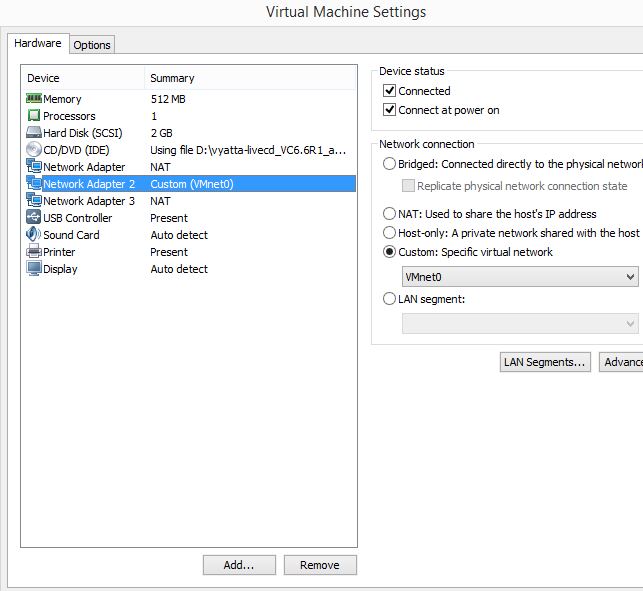
So we need to add a nic via VMware, and then have Vyatta recognize that nic right away, with out a reboot. So I added the Nic (see image below) in VMware:

Add-int

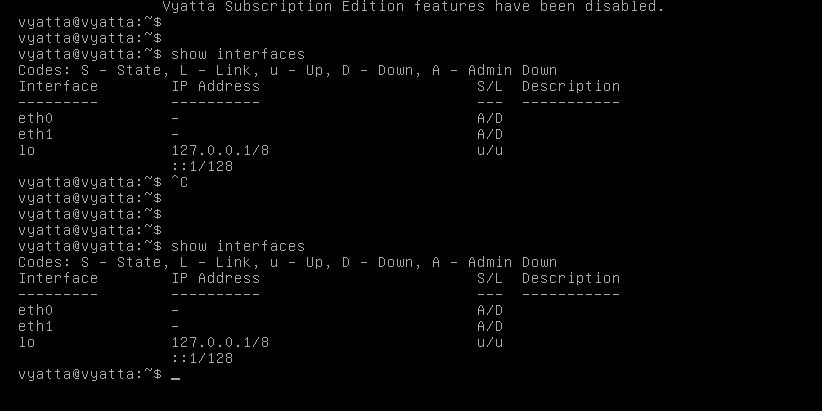
After I add the NIC, I can look on the Vyatta and see it still shows only two NICs.

showint

So, VMware added the nic but Vyatta(debian) never sees it. After trying to ifup/ifdown , service network restart – and many other commands it could never find it.

So, what is needed – we have to rescan the PCI bus to find the nic. Most Linux users are probably like — ya of course you do! But I just reboot and it works. In this case cant reboot.

To Rescan the PCI bus, we have to first change our permissions on that file, echo into that file, than change the permissions back. The commands to do so are:

configure

sudo chmod 0777 /sys/bus/pci/rescan

sudo echo 1 > /sys/bus/pci/rescan

sudo chmod 0220 /sys/bus/pci/rescan

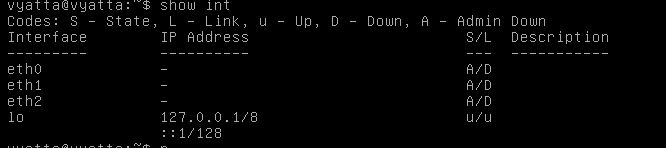
After doing that look at your interfaces:

int3

Now we see the interface and can configure it. This process should work with Debian no problem (since Vyatta is Debian).

Enabling LLDP in Ruckus wireless

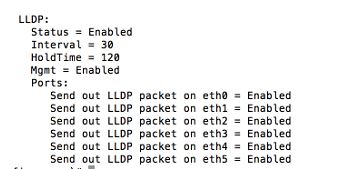
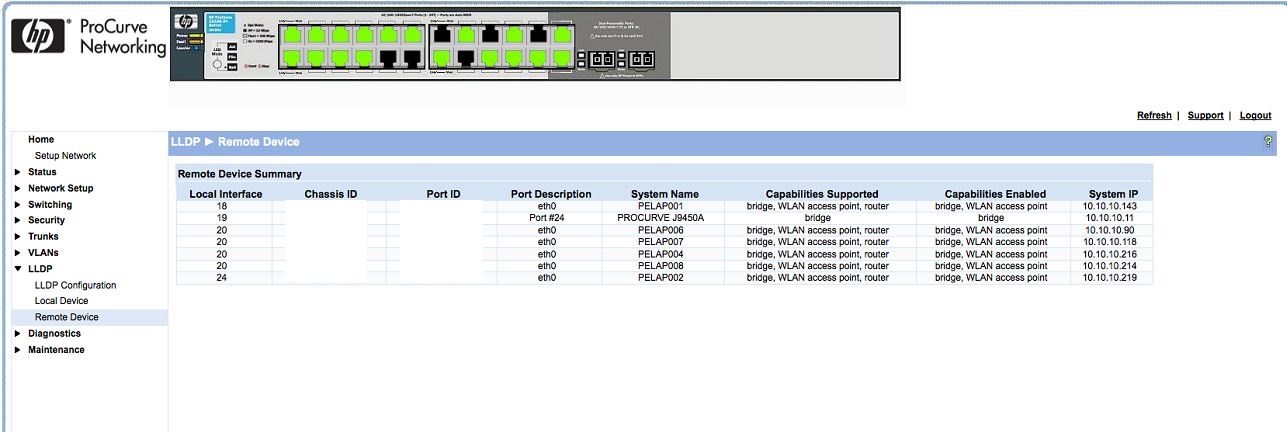
Ruckus has finally built in the ability to use LLDP to find Access points. I was so excited when I found this out, I installed the newest firmware and was ready to be blown away – and alas.. no LLDP. So, what was wrong? LLDP is not enabled by default! You have to go into the AP group via CLI and enable LLDP. No biggie.

This feature comes in software version ZDXXX 9.9.0.0.205 GA Software Release .

To enable LLDP – SSH into the zonedirector

Then after logging in run these commands

enable

config

ap-group “System Default”

LLDP enable

exit

exit

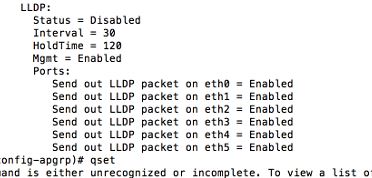
Here are some screenshots:

LLDP-3

As you can see, by just doing a “Show” it is disabled:

LLDP-1

After running the command: “LLDP enable”

LLDP-2

And BAM: now I can find my APs no matter where they are plugged in at

LLDP-5-edit

Dynamic Vlans with Ruckus wireless and Microsoft NPS

Hello all, I recently was given a strange task. An office needs to have everyone in there office on different vlans. The reason for this is that each user is developing software and they need to test VIA wireless to other wireless  devices. Lots and Lots of broadcast, as well as different subnets. So, how can we separate each of these users wirelessly and give each of them their own “play space”? You can accomplish this a couple ways: We can have 100 different WLANs, each with their own Vlans, or use 1 SSID and use Dynamic Vlans to separate them out.

The tools I will be using are – Ruckus Wireless Zondirector, and APs, Microsoft NPS, and Wireshark to take a better look at what is happening at the packet level.

So first lets setup everything. We need to use 802.1x authentication for WLAN Access. I will not walk through all the steps here but definitely do another blog entry on setting that up. So lets assume as of now we have 802.1x working great for authentication.

Our next step is that we need to create new Security Groups in AD and add our users to them. I added groups that reflected the Vlan name. For example WIFI-VLan-150 and then added my user I want to get VLAN 150 to.

Next lets create our Radius Policies.

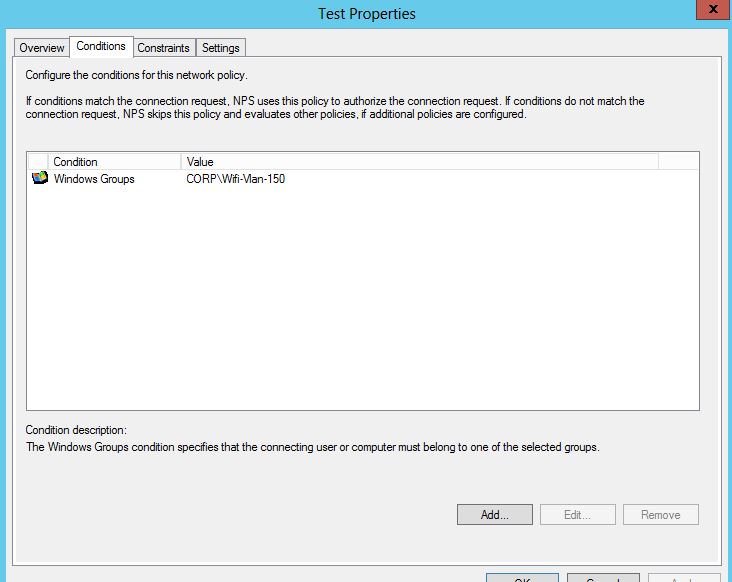
Create a new Network Policy- match the Group, add your Encryption and other settings. See below:

1

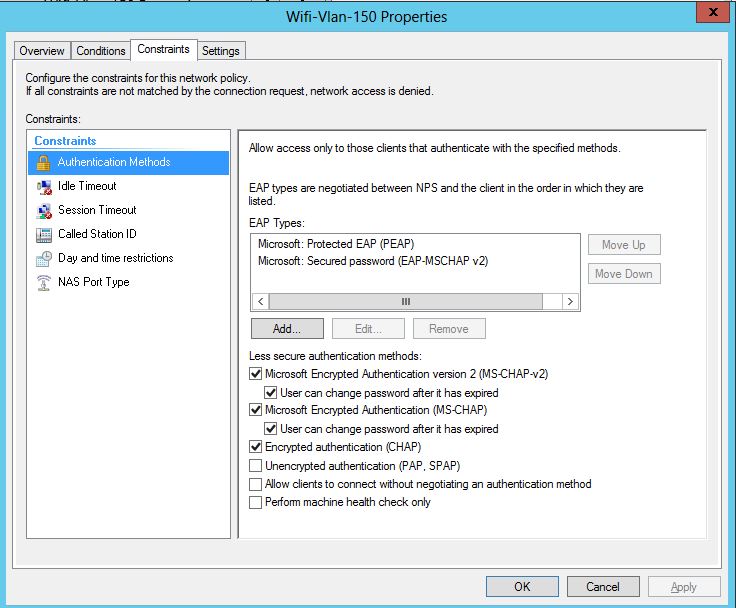
Then add your Constraints that you would like:

constraints

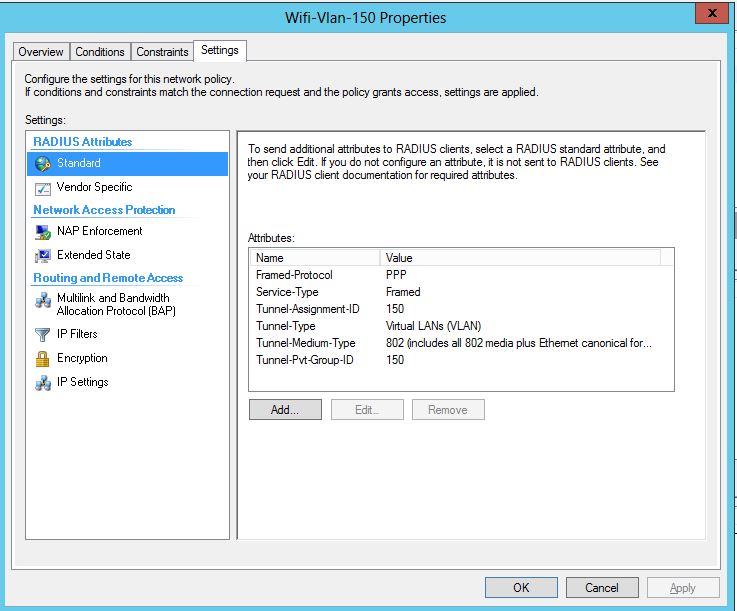
Next the magic happens – we have to add in our Radius attributes . These are Standard radius attributes. We will add 4 802.1x attributes.

Attributes to add:

1. Tunnel-Assignment-ID – String – Vlan ID.

2. Tunnel-Type – Select Virtual Lans (VLANS)

3. Tunnel-Medium-Type – Value – 802 – Commonly used for 802.1x

4. Tunnel-Pvt-Group-ID – Value – String – Vlan ID. Note – I did not add this at first, this attribute is what fixed my issue, and successfully pushed the Vlan ID to my client.

Here is a screenshot of all the attributes:

attributes

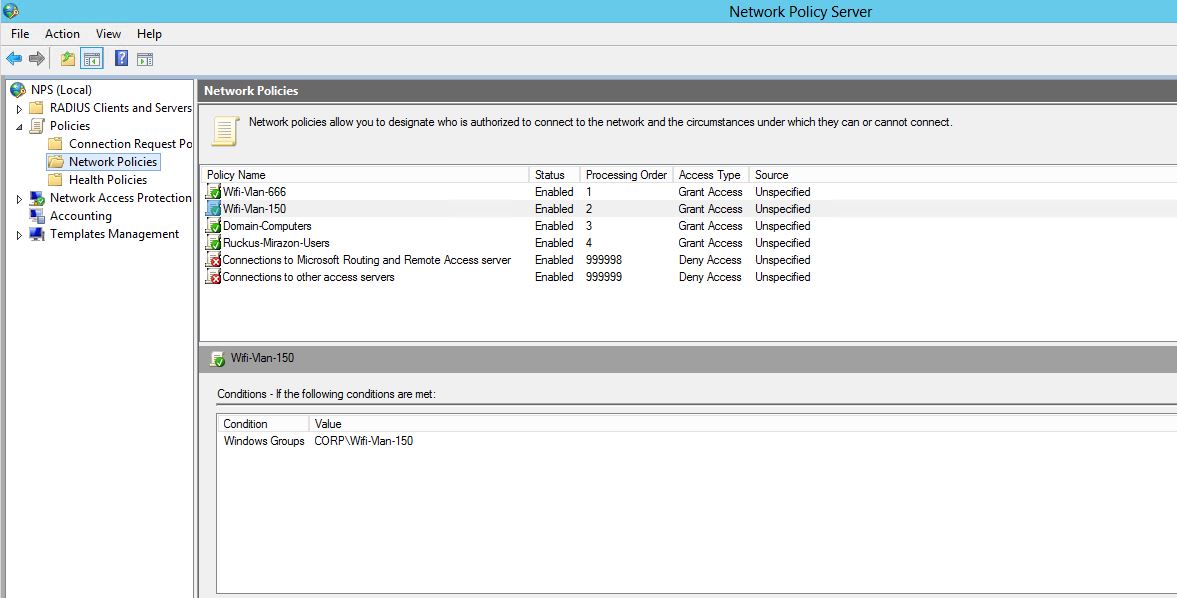
Make sure this policy is above your default policies. The next screen shot shows my order of policies. Notice I have one for 666 vlan, and 150. Then there is a domain computer, then a catch all for domain users.

policies

That’s it for Radius, now we need to create the WLAN for in Ruckus for our Dynamic Vlans. Remember, we are assuming everything works great with Radius authentication from the get go.

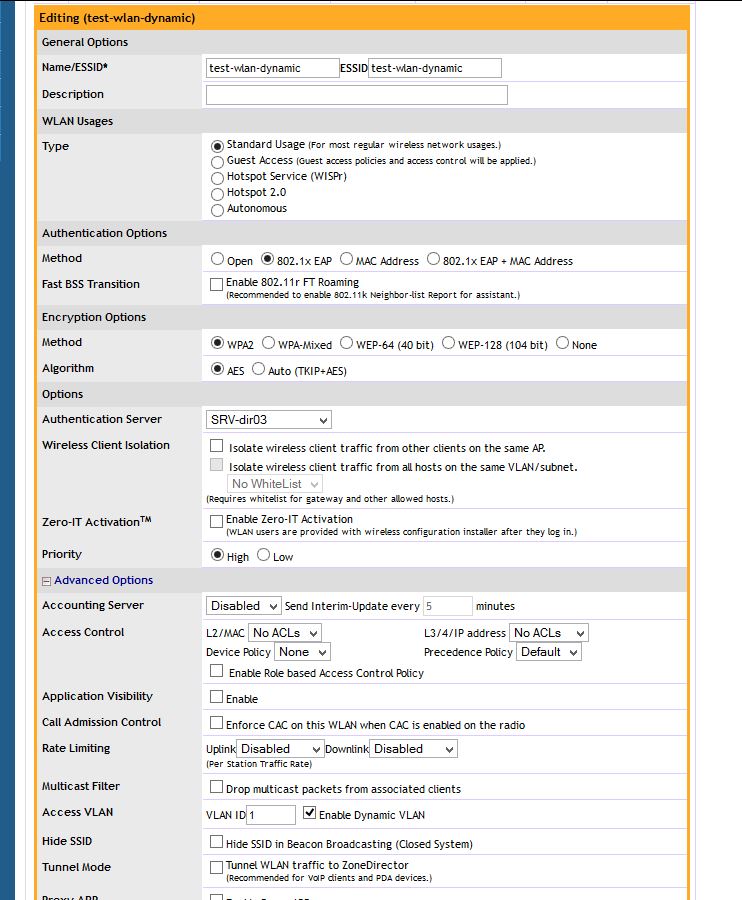
The main thing when creating the WLAN in Ruckus is to use 802.1x for authentication, and then under “Advanced” check the “Dynamic Vlan” box. You will notice I am using “SRV-dir03” For authentication (My Radius Server). Apply this and we should be golden.

ruckus

To check and make sure you are on the correct vlan/wlan you can always check your ip address or look into Ruckus and see what your info is. You Notice mine –

jc

Fortigate changing Switch/Interface mode

The entry is written for a 90d, but will work the same for a 60d or 80d, even some C models.

By default the Fortigate is in “Switch mode” you will only be able to see the “internal” switch, and cannot add or remove interfaces from this switch. In this mode you can add more switches, but not remove the current ports.

In the next few parts we will change the switch mode to interface, and be able to add/remove ports and switches.

Before doing anything to the Firewall make a backup. When we actually change the interface mode it will delete the IP address on the internal interface. So connect to a WAN or DMZ port and use the GUI, or make sure to be consoled into the firewall VIA the serial port (console).

First we need to remove any reference to the “internal” switch itself. If you have a default config then there will be only two. The internal->WAN policy, and the DHCP server under the “Internal” interface.

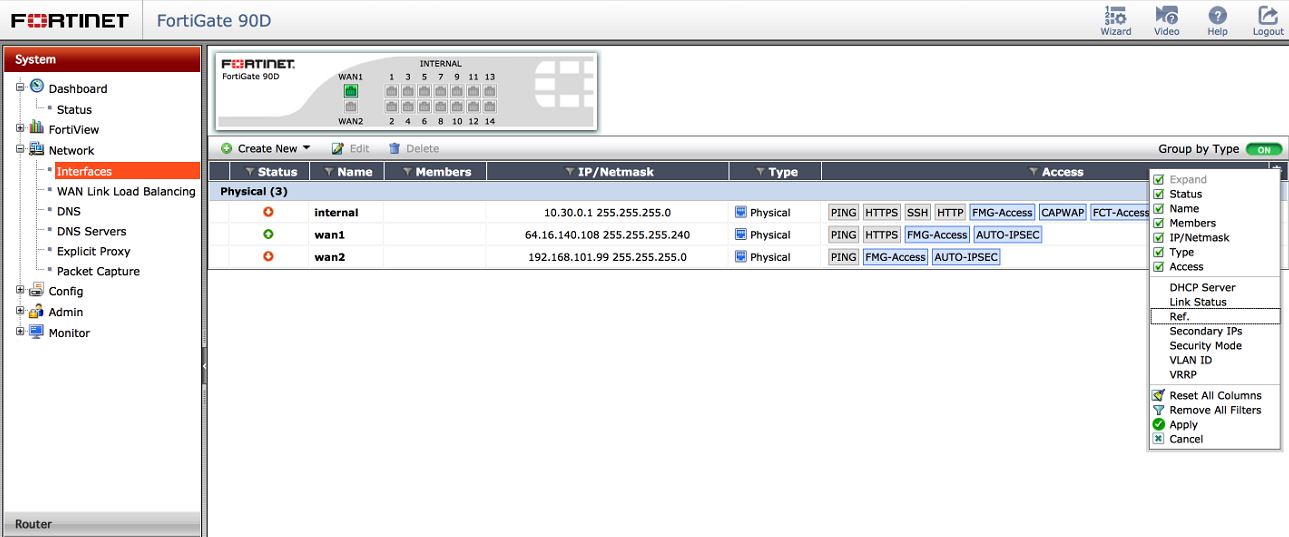
You can see all references attached to the interface by navigating to System-Network-Interfaces and modifying the settings to show the Reference tab.

int refJPG

once those references show up, you can click on the number and navigate to the exact location of that reference. For example, let say you added an address object a long time ago and added the interface. Bingo – shows you exactly where.

After removing all the references by deleting them (yes, deleting.. so make a backup!) you should now see a 0 balance in the references. We can now change the interface mode in CLI.

You can either do this through a terminal such as putty, or through the GUI CLI app. Remember after changing the interface mode, it will delete your IP address on the internal network. So do this VIA Console, or go to the GUI on the WAN or DMZ interface.

interface mode

Commands are:

config system global

set internal-switch-mode interface

end

Then click y to reboot the firewall, when it comes back it will be in interface mode.

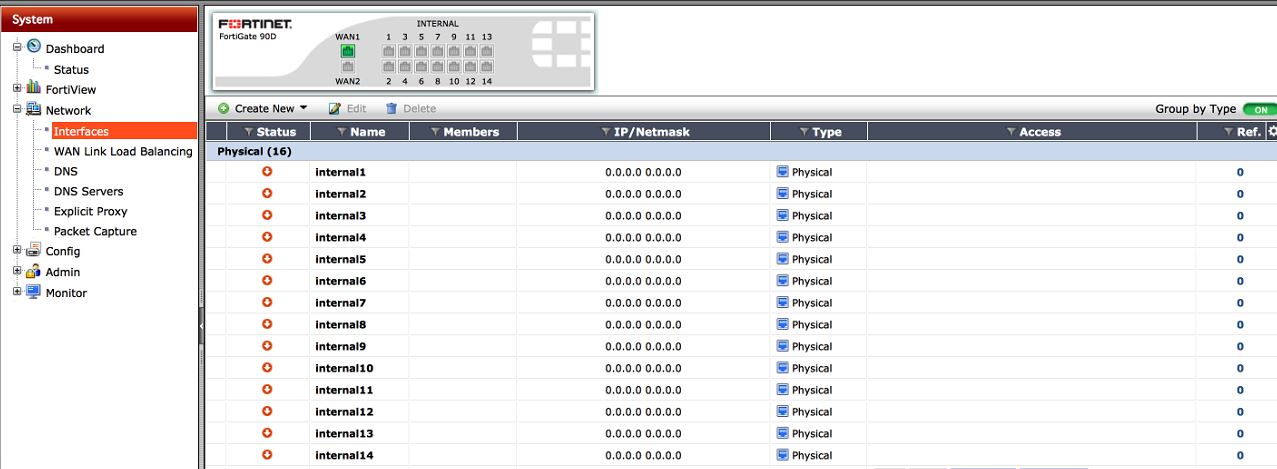
Once it is back up, login VIA the GUI on either the WAN1, WAN2, or DMZ ports. Then you should see something like this:

broke-interfaces

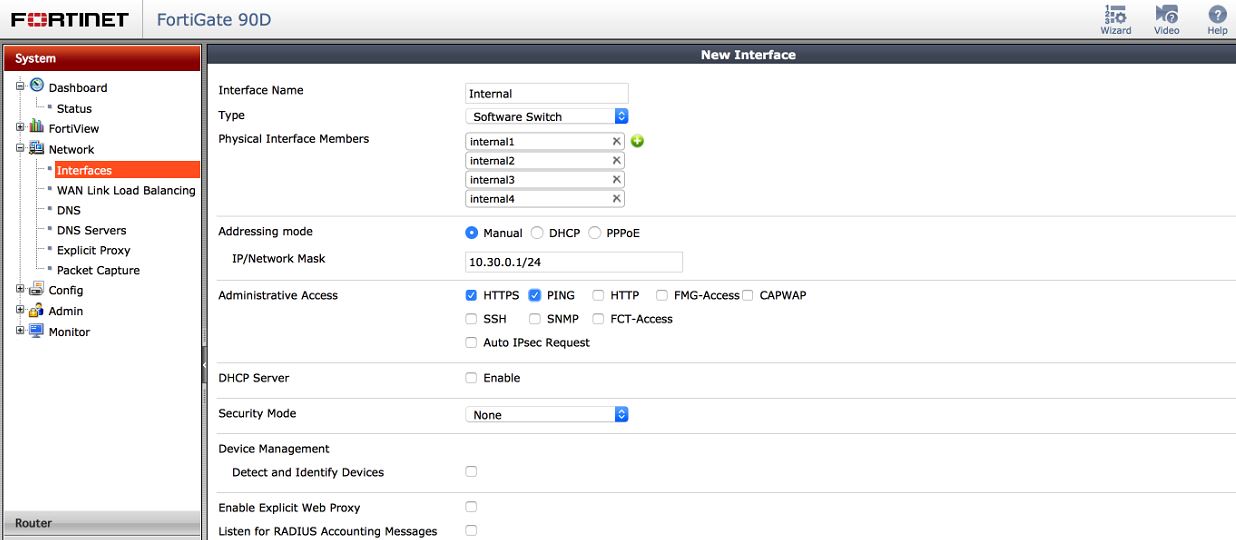
Now, under this page System-Network-Interfaces  lets click the “Create” Button. From here you can create your switch. Select the type as Software or hardware switch depending on your model. You can also add your ports, set the name of the interface and the IP.

internal-switch

Once you press OK, you should see your new interface listed under system-network-interface as seen below

show-switch

Recreate all of your policies, to allow access to and from and everything should work great. If you have any questions or I failed to explain anything please let me know.

Fortigate 5.2+ SSL VPN Address

You can use a different IP address to answer for the SSL VPN.

Lets say that your interface IP (The default IP address that is used with the SSL VPN) already has HTTPS (443) forwarded in to a internal server, and you really want the SSL VPN port to be 443. You have an option.

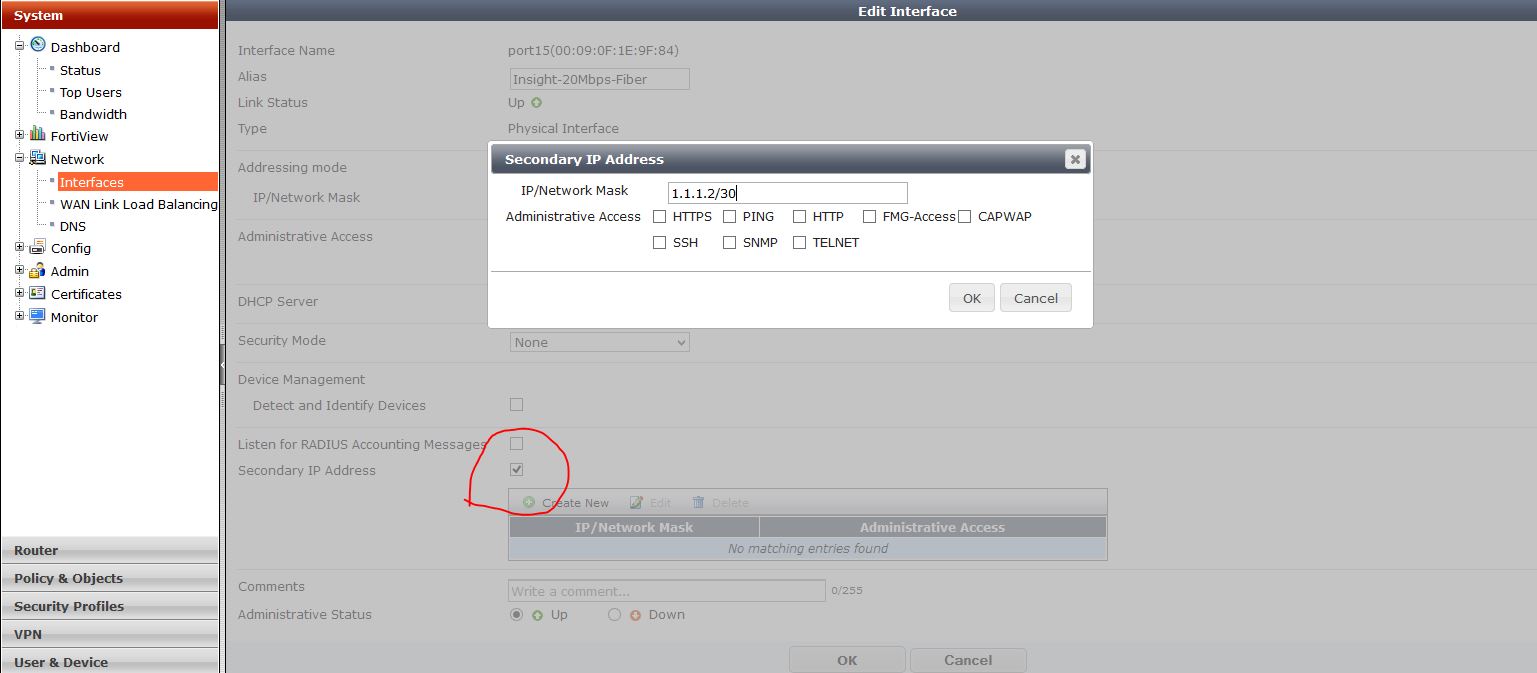
You can add a secondary IP  address under the WAN interface that does not have a reservation already for 443. Then use this IP address for the SSL VPN.

To do so:

secondary-ip

Add your secondary IP address – Note this has to be a public address, given to you by your ISP..

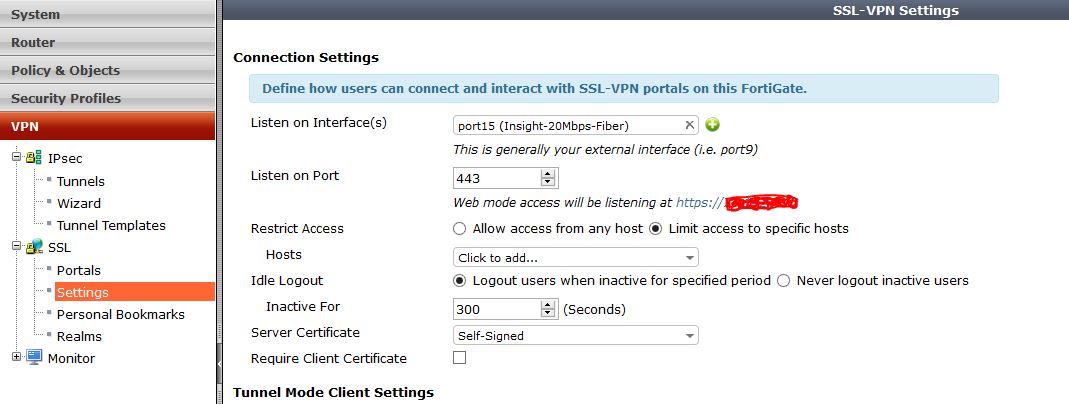
Then go into the VPN settings and modify the port for what you want. Notice that the address it says will work is still the primary IP, even though the secondary will work just fine.

ssl-settings-second

Fortigate – How to create a default route with a dynamic connection.

Recently I needed to make sure select traffic would flow over a certain ISP link. Unfortunately that link had a dynamic address, which meant the address and gateway of that route could change anytime. Also I wanted to have my primary ISP failover to this link if needed.

To accomplish these things I needed to have both default routes in my routing table at the same time. This means that they both have the same distance, but different priorities. One way to accomplish this is to configure a static default route, and just change the priority of the link , but how can you do this when you do not know the gateway?

You can create a dynamic-gateway static route in the Fortigate.

dynamic-route

Through CLI you can create a dynamic gateway route using the above syntax.  Remember, the higher the priority the less preferable the route.

You can also create basically the same thing under the interface of the WAN link by using the distance, and priority interface commands listed below:

cin-interface

So now if we check our route monitor:

cin-routes

We have both default routes, and can successfully use a policy based route to push the needed traffic out.

How to get Fortigate interface statistics such as errors/discards

There are two really good ways to pull errors/discards and speed/duplex status on FGT. One method is running the CLI command:

diag hardware deviceinfo nic X – Where X would be the port, for example wan1

Results:

Glass-B # dia hardware deviceinfo nic wan1
Description :FortiASIC NP6LITE Adapter
Driver Name :FortiASIC NP6LITE Driver
Board :100EF
lif id :2
lif oid :66
netdev oid :66
Current_HWaddr 00:09:0f:09:00:15
Permanent_HWaddr 70:4c:a5:1c:97:ee

========== Link Status ==========

Admin :up
netdev status :up
autonego_setting:1
link_setting :1
speed_setting :10
duplex_setting :0
Speed :1000
Duplex :Full
link_status :Up

============ Counters ===========

Rx Pkts :10168446
Rx Bytes :11555061952
Tx Pkts :7135911
Tx Bytes :1372048635
Host Rx Pkts :9869349
Host Rx Bytes :11069429016
Host Tx Pkts :6928881
Host Tx Bytes :1304248922
Host Tx dropped :0

On 1500D’s and other large devices the command is a little different. See the bottom.

on 1500D’s it seems the command changes a little bit to : “diag hardware nic port40“— this was the results from a 1500D that is running 10 gig. The output is at the bottom.

Second way

I started doing some research and found that there was a command that would drop you down to a very limited Linux shell. There are a few commands that are support such as “ifconfig”. This blew me away. I have been wondering if there was a command like this for a long time.

Log in through CLI, and run ” fnsysctl <command>” for example “fnsysctl ls”.

So to get the interface stats, I would just run: “fnsysctl ifconfig port16” or whatever port you want to look at.

fnsysctl

And there we go. I have search for some other ways to get this, and have not found anything. If someone finds something better please pass it along.


Output from 1500D

FGT# get hardware nic port40
Description :FortiASIC NP6 Adapter
Driver Name :FortiASIC Unified NPU Driver
Name :np6_1
PCI Slot :0000:0d:00.0
irq :40
Board :FGT1500D
SN :FG1K5D3I15800578
Major ID :3
Minor ID :0
lif id :19
lif oid :171
netdev oid :171
netdev flags :1303
Current_HWaddr 00:09:0f:09:00:24
Permanent_HWaddr 08:5b:0e:e3:45:1f
phy name :port40
bank_id :3
phy_addr :0x1f
lane :3
flags :804006
sw_port :8
sw_np_port :12
vid_phy[6] :[0x7f][0x29][0x00][0x00][0x00][0x00]
vid_fwd[6] :[0x7e][0x00][0x00][0x00][0x00][0x00]
oid_fwd[6] :[0xd9][0x00][0x00][0x00][0x00][0x00]
========== Link Status ==========
Admin :up
netdev status :up
autonego_setting:0
link_setting :1
link_speed :10000
link_duplex :1
Speed :10000
Duplex :Full
link_status :Up
rx_link_status :0
int_phy_link :0
local_fault :0
local_warning :0
remote_fault :0
============ Counters ===========
rx_error :0
rx_crc_error :0
rx_carrier :0
rx_oversize :0
rx_undersize :0
tx_collision :0
Rx Pkts :109497620
Rx Bytes :150634406914
Tx Pkts :74293345
Tx Bytes :42164760114
Host Rx Pkts :30734166
Host Rx Bytes :38611688664
Host Rx dropped :0
Host Tx Pkts :41309687
Host Tx Bytes :20219939267
Host Tx dropped :46
sw_rx_pkts :109497628
sw_rx_bytes :150634408123
sw_tx_pkts :74293361
sw_tx_bytes :42164761592
sw_rx_mc_pkts :301
sw_rx_bc_pkts :970
sw_in_drop_pkts :0
sw_out_drop_pkts:0
sw_np_rx_pkts :92470644
sw_np_rx_bytes :80482907648
sw_np_tx_pkts :143654631
sw_np_tx_bytes :183360431151
sw_np_rx_mc_pkts:136
sw_np_rx_bc_pkts:502
sw_np_in_drop_pkts:5708
sw_np_out_drop_pkts:0