Category Archives: Fortigate

Fortinet 7.2.12 and 7.6.4 Azure SAML signing issue

In the release notes of 7.2.12 and 7.6.4 you will see something like this:

After upgrading you will not be able to connect to the IDP until you fix this. This blog entry will show how to modify the signing options in Azure which will resolve the issue.

Once the firewall was upgraded, SAML auth was failing to Azure on the SSL VPN. I debugged out the authentication attempts (dia deb app samld -1) and saw the following: Signature element not found.

To fix this we have to go into Entra Apps, and the SSL VPN app we are using and modify the SAML signing option.

Check these two screenshots on how. First go to your app as mentioned above, and then the “Single Sign-on” section. Next click on the edit under the SAML cert selection.

Next lets change the setting for signing:

After changing these settings I was able to connect just fine. So whats actually happening here?

SAML signing involves using a digital certificate by an Identity Provider (IdP – Azure) to create a digital signature for a SAML Response or Assertion, which is then used by a Service Provider (SP or – Fortigate) to verify the data’s integrity and origin. A SAML Assertion contains user identity and authorization details, while the Response is the XML envelope that carries these assertions and other information from the IdP to the SP to facilitate Single Sign-On (SSO). Signing the entire Response ensures the whole message, including its assertions, is trustworthy and hasn’t been altered. So basically its a way to increase security by making sure that both parts are signed by the trusted IDP cert.

Fortigate – Separate IP pools out of multiple SDWAN Interfaces

Now that I setup SD-WAN interfaces in Fortigate for almost any deployment – due to future proofing. I have struggled with how to make internal resources that need to nat out publicly from a certain IP (Not on the interface). In a normal scenario, no problem, we just use an IP pool for outbound traffic from that internal device(s). In the SD-WAN scenario, I had a problem where the outbound IP Pool for the outgoing nat would still try to hide the IP behind a IP that lived on the WAN that is having the outage. The firewall policy seemed not to be smart enough to say – “ahh that interface is down, lets make sure it goes out of policy 2”. One option I did was have two policies – one to nat out of each ISP, then to have a automation stitch to see the interface go down, and disable the normal policy, which would then hit the lower policy.

The option I am describing below is much better.

Within the IP pool there is an option within CLI to set an associated interface. This fixes the issues. So, I have two IP Pools, one for ISP 1, and the other for ISP 2. So to talk through the setups – there are a couple.

  1. Create SDWAN
  2. Create SDWAN rules send traffic out of needed interfaces.
  3. Next create the IP pools, and in CLI set the associated interface.
  4. Create a firewall policy matching the correct object, and add both IP pools in the IP pool list. The SDWAN rule will set with VIP is used based on SLA Method.

The below shows the IP Pool option:

Below shows the Images for the firewall policy.

Fortinet LDAP/RADIUS Source address with SD-WAN setup

I found this a neat tidbit of knowledge that I thought I should share.

Created a Fortinet SDWAN setup with many sites – works awesome. Fortinet’s SDWAN is simple, but very effective with some really cool features to help with SLAs.

During this setup, I have Radius, and LDAP servers located across one of the members of the SDWAN (An IPSEC tunnel). As before with tunnels, you would modify the source address in CLI for the destination server. This would make sure requests originate from the interface you are expecting, and will go through the tunnel.

After switching the tunnel to be a member of a SDWAN interface the LDAP/RADIUS requests stopped working. I found another command was needed. This command is needed not only for Radius, and LDAP but also for FAZ, Fortiguard, and dns.

In CLI of both Radius and LDAP servers you will see these options:

The trick here is to set the “interface-select-method” to sdwan. This resolved my issue and allowed things to start working. The reason it does this is that Self-originating traffic, such as Syslog, FortiAnalyzer logging, FortiGuard services, remote authentication, and others, relies on routing table lookups to determine the egress interface that is used to initiate the connection. Policy routes generated by SD-WAN rules do not apply to this traffic.

Setting up Static Addresses for Fortigate SSL VPN clients

I needed to have a specific SSL VPN client to always have the same IP address. This is not overly simple as it seems it should be. I have read there are very neat ways to do it through FortiAuth, or Radius options – but Here I am just doing all Fortigate configuration.

I am using a local account on the firewall in this example, but it would work with an AD users without issues – you would just have to map the user directly and not use groups.

SO, in this example I have a Scan gun that needs to have a specific IP every time it connects. So an overview of the steps are:

  • Setup SSL VPN (Should be already done if you are trying this).
  • Have LDAP or Radius integration already setup if you are specifically using that.
  • Setup Address object that you need the device to get – For this example 10.200.253.241.
  • Create a user object either local, or LDAP/Radius. – In this example Bargun01.
  • Create a specific portal if needed just for this user.
  • Create group/portal matching in SSL Settings.
  • Create firewall policy allowing that client in.

Ok, first lets create our address object .

Next lets create our user object – We need to do a specific user object, because we only want one device to be logged in and match this policy.

Then lets create the portal specific for this device – which only needs access to one server. In this portal we will match the it to the individual IP object we created, and set the remote access server it needs. Notice that the source IP Pool is the specific IP we set – this is where all the real magic is.

Next lets match up our user to the portal.

One more thing to do – and that’s to setup our firewall policy! Notice that the user matches what we put in the portal. Very specific. That’s it.

Getting mac-address table from Fortiswitch

Tracking down MACs from a switch can be very beneficial. You can use the information from the MAC table to track down where a device is plugged into, or if there is some kind of loop in the network.

This command is used from the Fortigate to drill down to the Fortiswitch. I do believe it would also work directly from the Fortiswitch.

To display the whole MAC table:

diagnose switch-controller switch-info mac-table

Lets say I need to look for the last 4 of the MAC to find exactly where this device plugs into.

diagnose switch-controller switch-info mac-table | grep 3a:fe

00:60:6e:ec:3a:fe port1 1

Now we can see that device is plugged into port 1 of the switch.

Getting Fortiswitch interface statistics

I am more impressed with Fortiswitches every time I work with them. The ability to implement light NAC features, INTRAvlan firewall policies and overall management really gives these switches a feature set to checkout when deciding on new switches.

Below are the steps to quickly get the interface stats such as errors/packets, etc. The commands are ran on the Fortigate, which in this case is controlling the Fortiswitch.

Drop into CLI on the FGT and check what switches are connected by running the command

get switch-controller managed-switch

This command will bring back the names of the manged switches. Locate the switch you want to check the port stats on. For example, we will use the name “FS1D24T419001174”

the command to get the stats are:

diag switch-controller switch-info port-stats FS1D24T419001174 port1

The output is in the image below:

using the top level command diag switch-controller switch-info you can also get LLDP, Power, and lots more info of the managed switch.

Updating or Rekeying Fortigate certificates

Certificates for VPN, SSL Offloading (if using Load balancing), or a signed device cert expire, we all know this. Up until last week I had never updated a signed certificate, I had just created a new CSR, and rekeyed the cert. Updating the certificate the Fortigate is using is very easy, but I had problems with the syntax so I am documenting it here.

The Fortinet KB article to do it is located here:

https://kb.fortinet.com/kb/documentLink.do?externalID=FD35074

I had an issue following the doc so I though I would clear the water and see if I could help someone down the road. Lets say I have sslvpn.travelingpacket.com that will expire in 2 days – I log into my CA (godaddy in my case) and renew the cert. They send the new cert to me, but what do I do with it…

Open the cert with a text editor – maybe notepad – and copy the cert. you should see —BEGIN CERTIFICATE. Copy everything. Then log into the fortigate VIA cli – Putty or some kind of SSL client is way better for doing this then the web client. Then lets modify the certificate

config vpn certificate local

edit sslvpn (or your cert name)

set certificate “—–BEGIN CERTIFICATE—– mPjDQDYkYHKcTrGa6aH7e1w1uM7kdaBAjyAgM7xcmuTrsCeLYfd+BwIDAQABo4IDTDCCA0gwPQYJKwYBBAGCNxUHBDAwLgYmKwYBBAGCNxUIorRWhO7dYIKtkziB9KY0
>—–END CERTIFICATE—–“

and Press enter – The issues I had was with the quotes. I tried to first do double quotes, and past the cert in the middle – that does not work. Just simply type in the command set certificate and then a double quote and past the cert whole. After its pastes do the ending quote and press enter.

IMPORTANT: That’s it for modifying the cert – but to enact it we have to remove it from whatever we are using it for, and then add it back. That refreshes the cert. So if your using it for SSL-VPN , go to VPN – SSL-VPN settings – and set the server cert to a different one, press apply, and change it back.

Fortigate: Creating a static route in FortiOS 6.2

This entry details how to create a static route in both the GUI and CLI of the Fortigate firewall. Specifically I am using FortiOS 6.2.4 but its pretty much been the same for years.

Lets start by talking through the things that will be needed to create the static route.

Subnet – this is what we want to route to, for a default route its 0.0.0.0/0 but if we wanted a more specific route, lets say to 192.168.100.0/24.

Destination Interface – Next hop interface we want to send traffic out of.

Gateway address – Directly connected interface neighbor that we want the next hop for 192.168.100.0/24 to be.

Administrative Distance– is a feature used by routers to select the best path to a destination when multiple paths to the same destination are present. Lowest AD wins and will be placed in the routing table.

Advanced optionPriority – To build on AD definition – What if two routes exist in the routing table to the same destination with the same AD? This is where Priority comes in. Lowest priority wins. By selecting a priority you can have multiple routes to the same destination in the routing table, but one would be preferred over the other. This comes in very hand for Reverse Path forwarding issues.

So after all that’s said, we need to route 192.168.100.0/24 to our LAN interface with a next hop of 192.168.1.2.

First lets create this in the GUI. Navigate to network – static routes – and create a new one.

Create-new.

Now we will just insert the needed info. I am leaving the AD at 10 – which is default.

Route-Create

Press OK – and Bam! route created. We can check that the route has been created and is the routing table by going to monitor – routing monitor.

filter

Next lets do the same thing in CLI.

First route creation. When you create the route edit the next available sequence number. In this case its 46.

CLI-creation

You can see if your route is in the routing table in CLI by running the command “get router info routing-table all” but in this case I am using the static option, and grepping just what I need to see.

grep

Fortinac PXE DHCP boot options

Fortinac is built on top of CentOS and is a great product. Recently I needed to have default or isolated vlan support PXE booting as well as isolation. This way if a computer is being imaged we don’t have to worry about hard coding ports with vlans, etc. This is important because the NAC cannot look at the client prior to the OS install.

These settings were added to the dhcpd.conf – they would work for any implementation running dhcpd not just Fortinac.

Below is the conf that works.

# Sample /etc/dhcpd.conf

authoritative;
log-facility local6;
ddns-update-style none;
allow bootp;
allow booting;
class “authenticated_clients”
{
match pick-first-value (option dhcp-client-identifier, hardware);
}
# Isolation Scope ISOL_Isolation_blackhole
subnet 172.16.172.0 netmask 255.255.252.0 {
range 172.16.172.10 172.16.175.200;
default-lease-time 28800;
max-lease-time 86400;
option domain-name “blackhole.local”;
option domain-name-servers 172.16.172.254;
option broadcast-address 172.16.175.255;
option routers 172.16.172.1;
next-server PXE-SERVER-IP;
filename “SMSBoot\\x64\\file1.efi”; — NOTICE the two slashes that represent the file path – I was missing this, and of course it could not find the file.

The options for next-server and file-name were the options needed to push PXE settings over.

Restart the service after saving the configuration to dhcpd.conf

Fortigate 6.0 Adding and removing IPs from Quarantine list

Starting in 5.4.1 you could “Quarantine” an IP address. This means that the quarantined host cannot communicate through the firewall.

There are many different parts of the firewall the quarantine an IP address. For example the AV and IPS can both automatically quarantine an IP if it meets a defined violation.

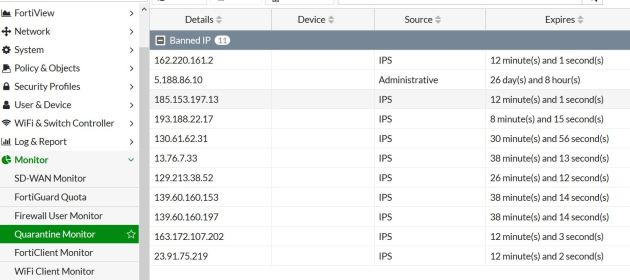
In 6.0 you can view the IPs that have been quarantined by going to Monitor- Quarantine. From here you can see what IPs are blocked, and for what reason. As you can see in the image below 5.188.86.10 has been blocked for 26 days by an admin. If an admin blocks an IP address (as we will see) it shows up with “Administrative” as the source.The other IPs have been blocked by the IPS engine. The below image shows the monitor section.

quarentine

So, lets say that you look into Fortiview and see that a remote IP is sending/receiving a ton of bandwidth and you want make sure that stops. in this example lets quarantine the IP 67.247.21.7.

In this example we can act like I was looking through Fortiview and found an issue that makes me want to block the above IP. You can just click on the IP you would like to block, right click and then select to “quarantine”. When you do this, it will pop up and ask for the length of time you would like to block them for.

block

The above shows that it will ban the IP from communication for the given period of time.

So, lets say we want to remove an IP address that has been quarantined –  No problem, just need to go to Monitor-Quarantine and click on the IP and delete that individual or click to delete all entries.

delete-block

You can modify how long and for what reason the IPS/AV quarantine an address for within the policy. For example, below shows modifying the reason/time of quarantine. The AV settings are within the CLI of the AV policy under “nac-quar”. Something to note, sources are not quarantined by default.

FGT’s entry on configuring AV settings: https://help.fortinet.com/fos50hlp/54/Content/FortiOS/fortigate-security-profiles-54/Antivirus/Quarantine%20or%20Source%20IP%20ban.htm